Using Scoring Tiers
Scoring tiers allow review results to be displayed in various formats, such as an exact number with decimal places, a grade, or a color. Only percentage-based scoring can be used for Scoring Tiers.
To add or edit scoring tiers, navigate to Scoring Tiers in the left navigation tree. Users must have the SCORING_TIERS_MANAGE permission (assigned to CC_MANAGER by default). See the Roles and Permissions page for more details on user permissions.
Benefits of Scoring Tiers
Viewing Scoring Tiers
Users with the Scoring Tiers View permission can only view the scoring tiers.
The following scoring tiers are built-in and prepared for your use:
-
Exact Scores: Exact score number including decimal places, shown in percentage. No viewing details are available.
-
No Scores: No score information. No viewing details are available.
-
Color Scores: Displays a defined color, and optionally a label, instead of a percentage.
Modifying Scoring Tiers
Users with the Scoring Tiers Manage permission can also add or modify the scoring tiers. Of the built-in scoring tiers, only the Color Scores scoring tier can be modified. Exact Scores and No Scores scoring tiers cannot be modified.
Deleting a Tier
To delete a scoring tier, select the row, click the Delete button, and confirm the action.
The following cannot be deleted:
-
The default scoring tier cannot be deleted.
-
Any scoring tiers that are in use.
Adding or Editing an Existing Tier
The process for creating a new scoring tier or editing an existing one is very similar. To create a new scoring tier:
-
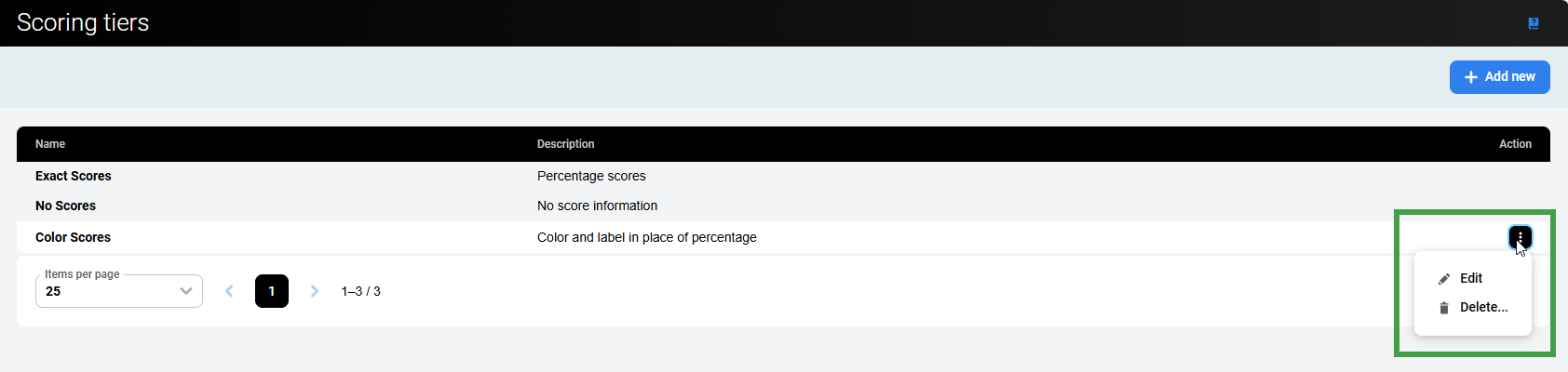
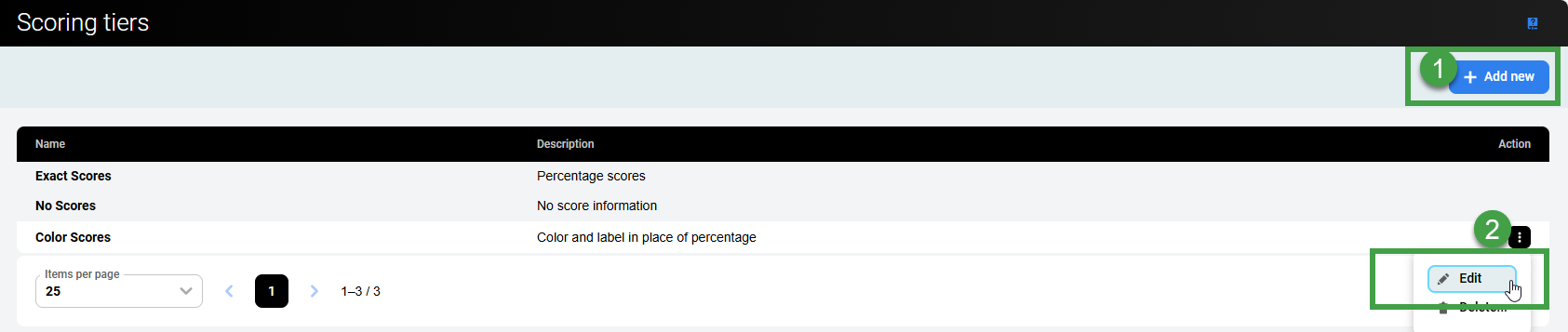
Click the Add new button (1). To edit a scoring tier, select the respective row, click to expand the three-dots menu, and then click Edit (2).
The Details Pane opens.
Adjust the scoring tier:
-
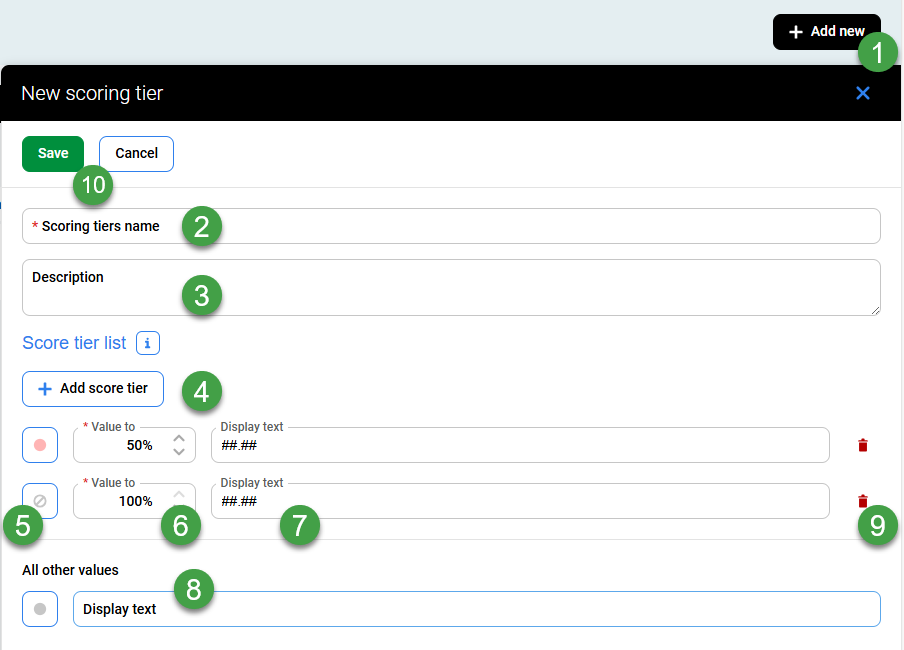
Click Add new (or edit when modifying an existing item).
-
Scoring tiers name – Add an descriptive title.
-
Description – Add a short description.
-
Add score tier – Add new score rows or edit existing ones. Set the individual scoring ranges by setting the highest percentage (including decimals). Add additional score tiers as required.
-
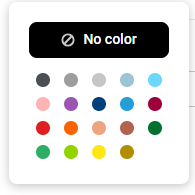
Click to view the color palette. Select a suitable color from the available options.
-
Value To – Enter the upper bound for each score range (inclusive).
-
Display text – Specify the text to display for each range. Use the hash symbol (#) to represent a digit, optionally with a decimal separator, to set how exactly the gained percentage is shown (e.g., ##.##, ##.#, ##). Any text (e.g. Great, Good, Poor, etc.), and even combine the result with a text (e.g. ##.## Great, # Poor, ##.# Excellent, etc.)
-
All other values – Select a color to display for any value that falls outside of the range defined previously.
-
Delete any score tier that is not required.
-
Click Save to confirm the edits or Cancel.
Clicking Cancel or closing the window discards any unsaved changes.
Regarding the export of data
Once reviews are exported, all numbers are shown as results, even if scoring tiers are used to represent the results with Quality Management.
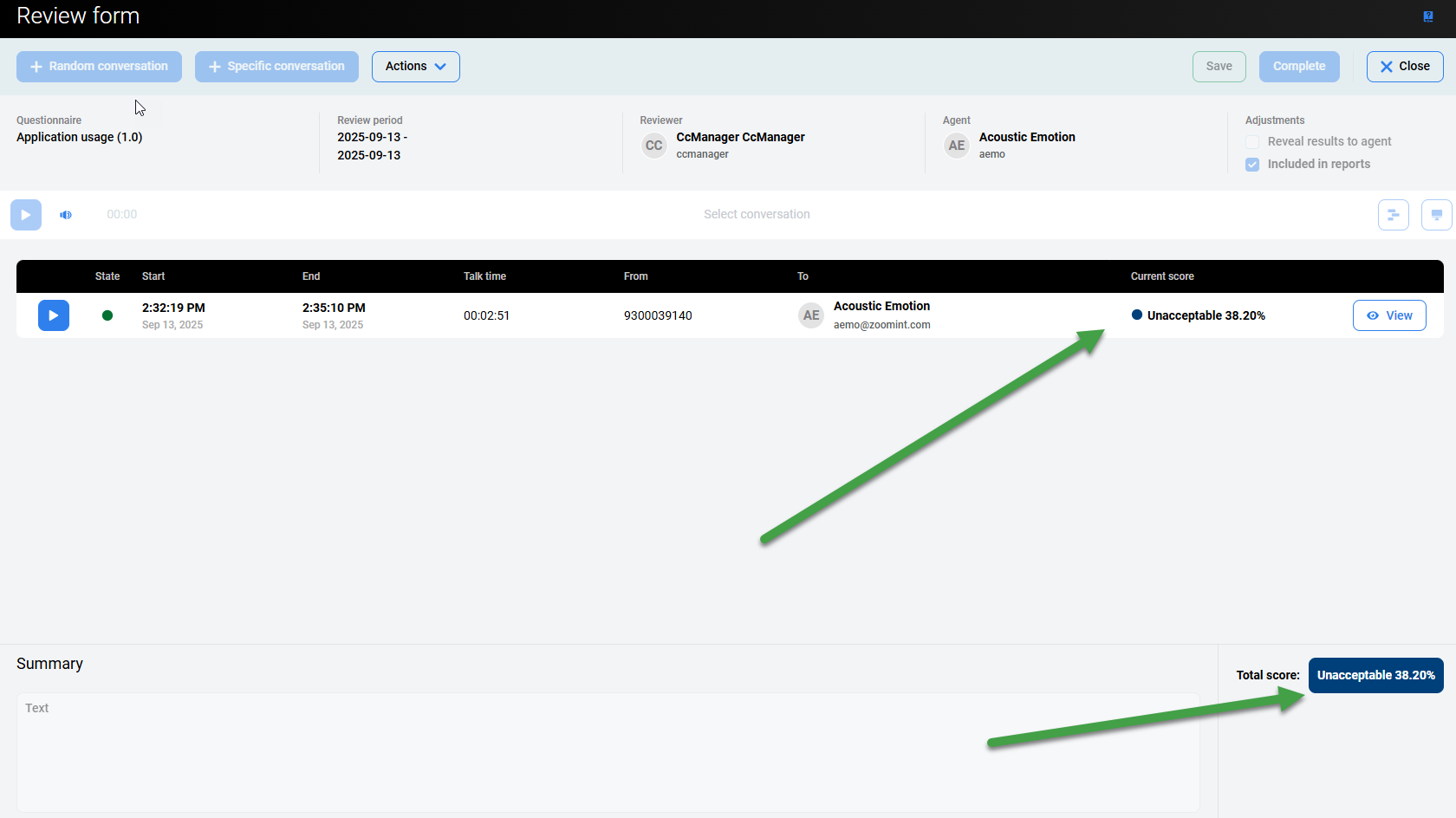
Example of the use of text and hashtags representing a digit.
In this example, we have added a scoring tier Unacceptable ##.##. Using this combination allows for the score to be displayed directly within the Review form.
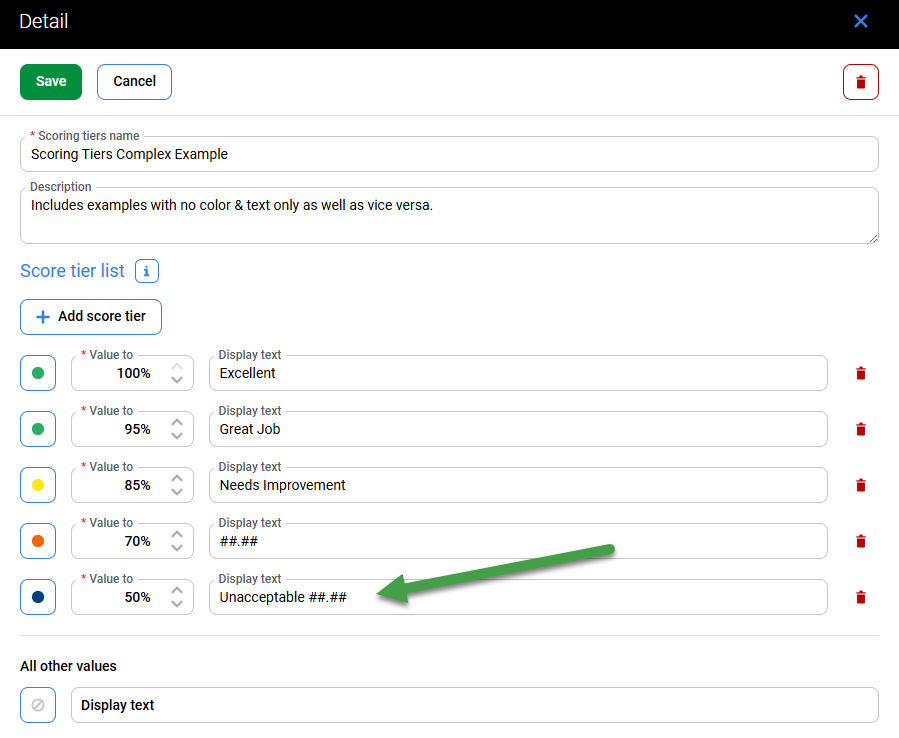
Later, the results are visible on the Review Form.