
It is possible to import schedules configured within the Eleveo WFM application into any native calendar application on a mobile or desktop device that supports the iCalendar format. Data is imported using an URL, generated by the WFM.
The WFM_VIEW_AGENTS_SCHEDULE role is required to export the personal schedule calendar. This role is included by default in the WFM_AGENT composite role. Read more about Workforce Management Roles.
Click My Schedule within the navigation tree. The My Schedule screen displays.
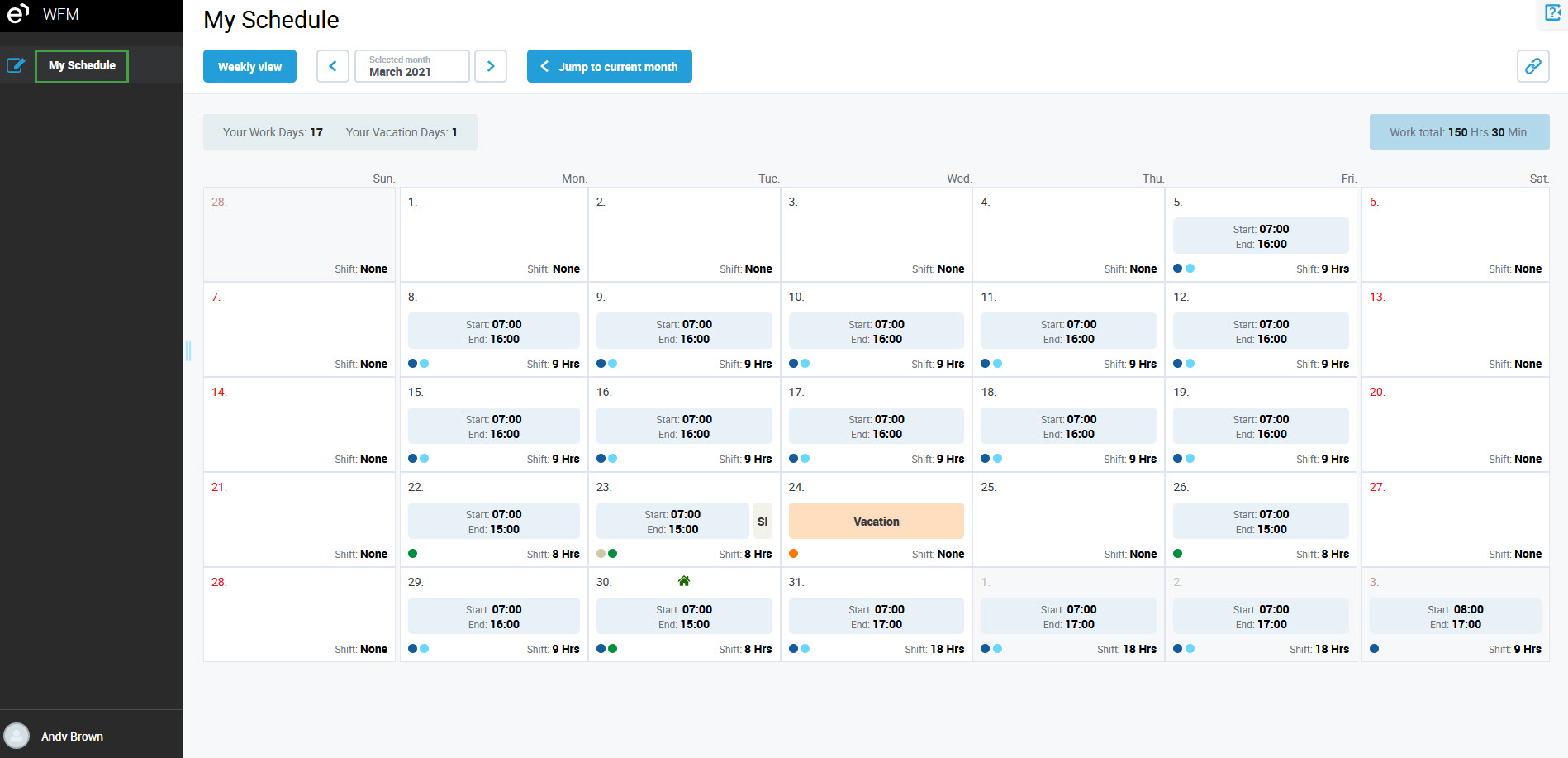
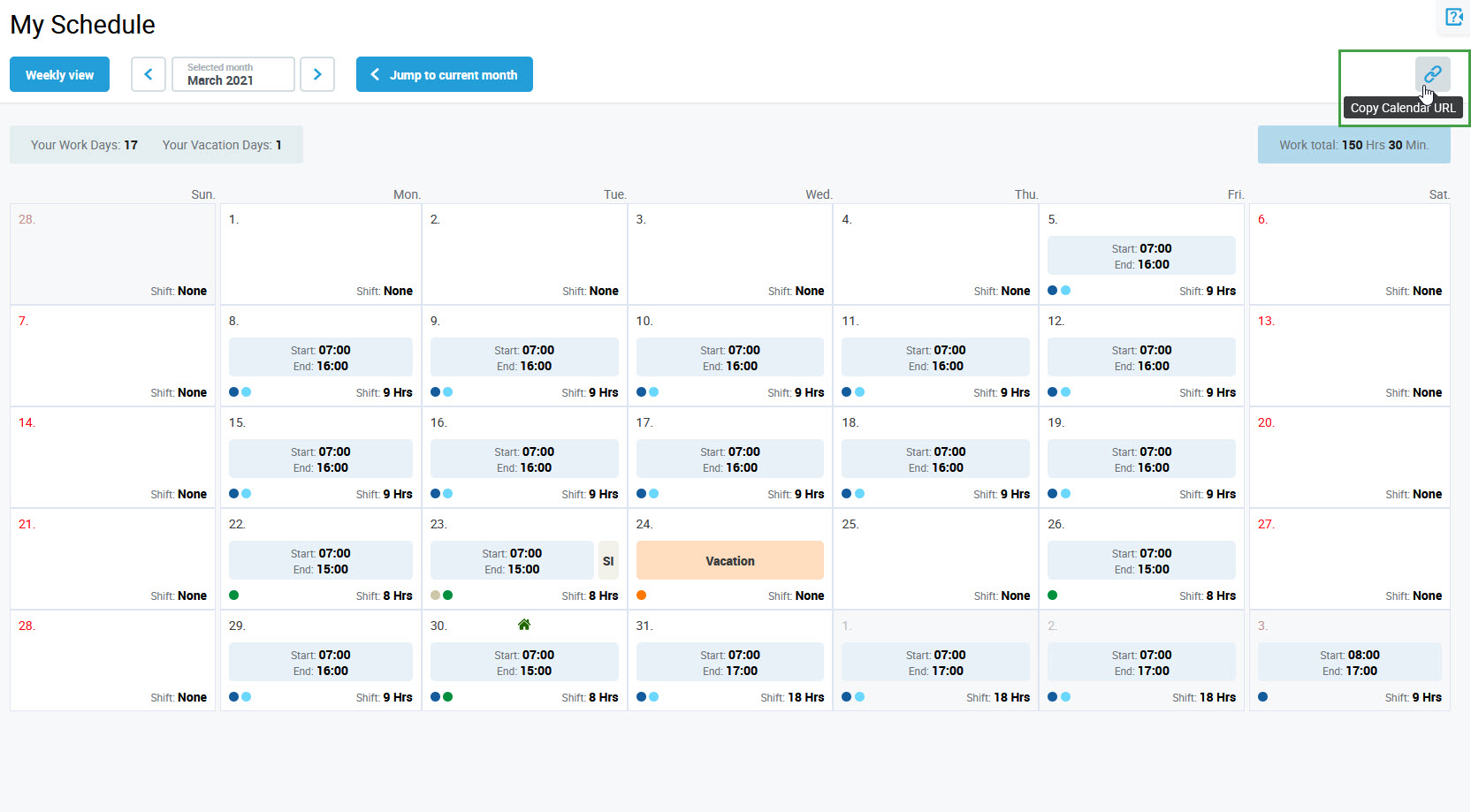
Click the Copy Calendar URL button, located in the top right corner of the screen.
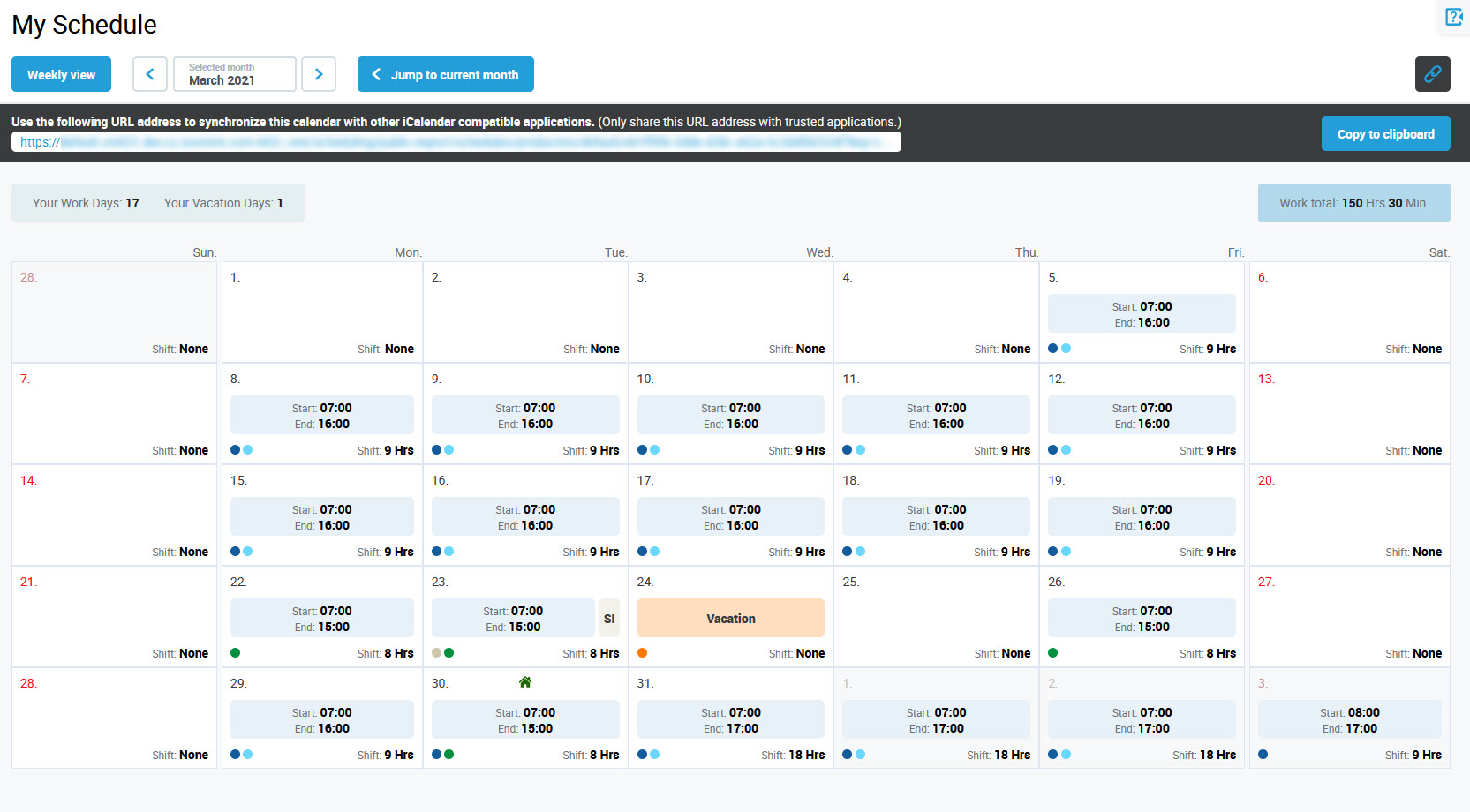
The URL displays. Click Copy to clipboard to copy the URL.
The system confirms that the URL has been copied.

Use the URL to connect the My Schedule calendar with an external calendar application on your mobile device. All scheduled events are imported into this external calendar. Users are able to view events as long as they have access to the Eleveo WFM application. If a user loses access to WFM, the events in the external calendar are no longer visible.
The Copy Calendar URL button is available from the Monthly view, or the Weekly view screen. There is no difference in functionality.
Synchronization takes time
Since external calendars sync with the WFM application once a day, it may take a few hours for changes in the My Schedule calendar to appear in your external calendar. Google calendars only sync every 24 hours.
Importing My Schedule to Personal Devices
Follow the steps required for your device: