
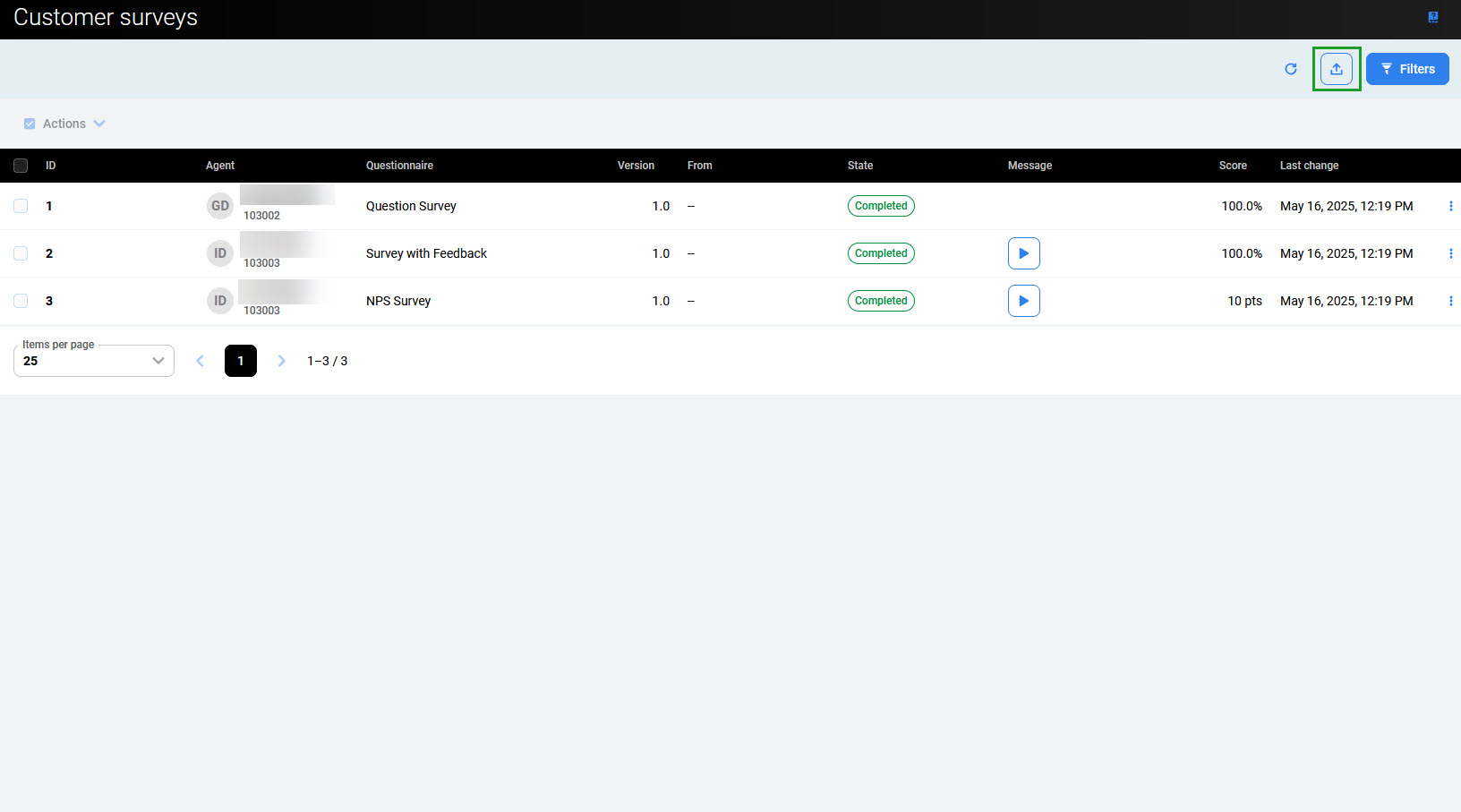
To export surveys, click the Export button in the top right corner of the Customer surveys screen.
The export pane opens. It displays the number of active filters currently applied and the resulting number of items available to export.
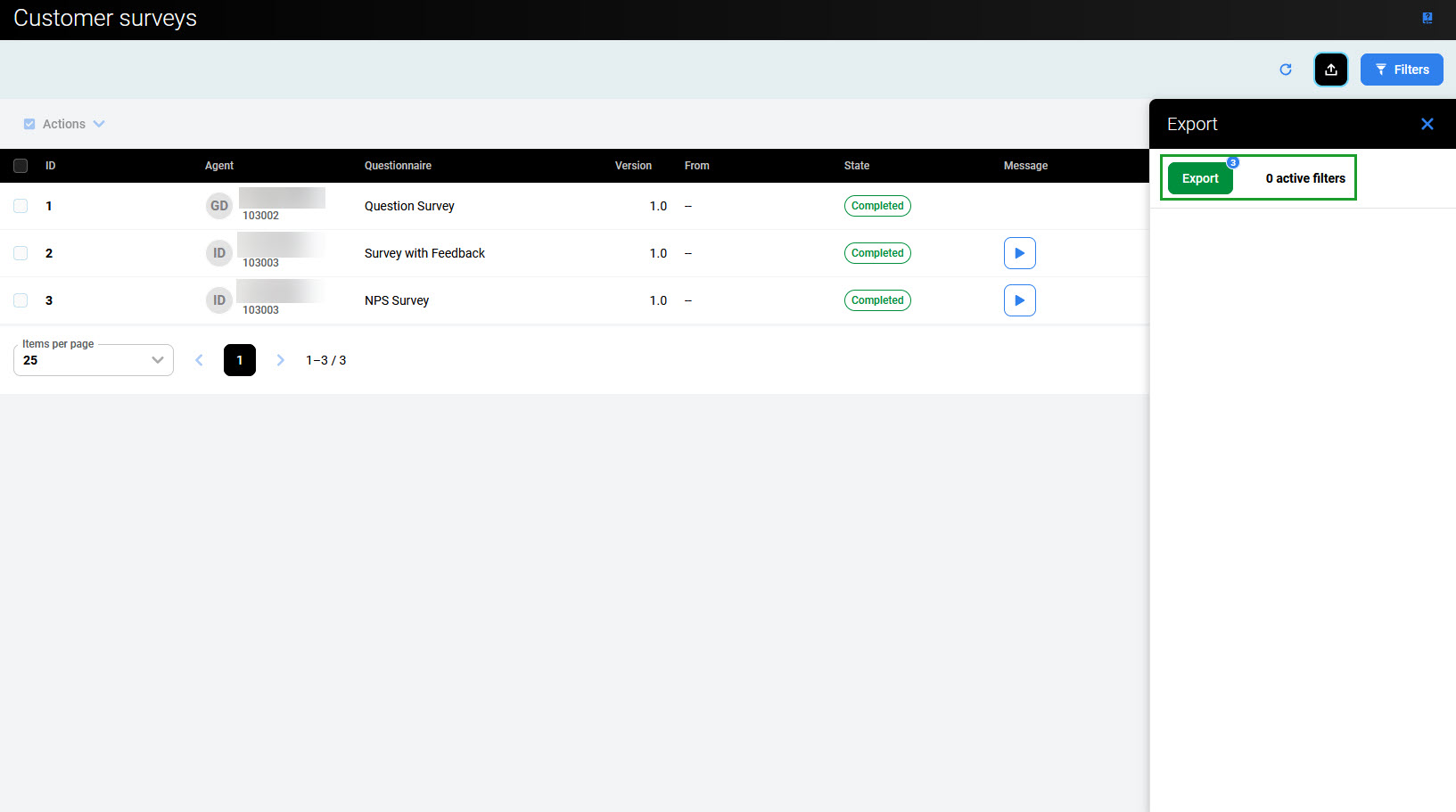
Click Export to export the list of surveys' details in the xlsx file.
To export only specific survey(s), click the Filters button and apply filters as described below. Additionally, use checkboxes to select which surveys need to be exported. Then re-export the desired content.
Applying Filters
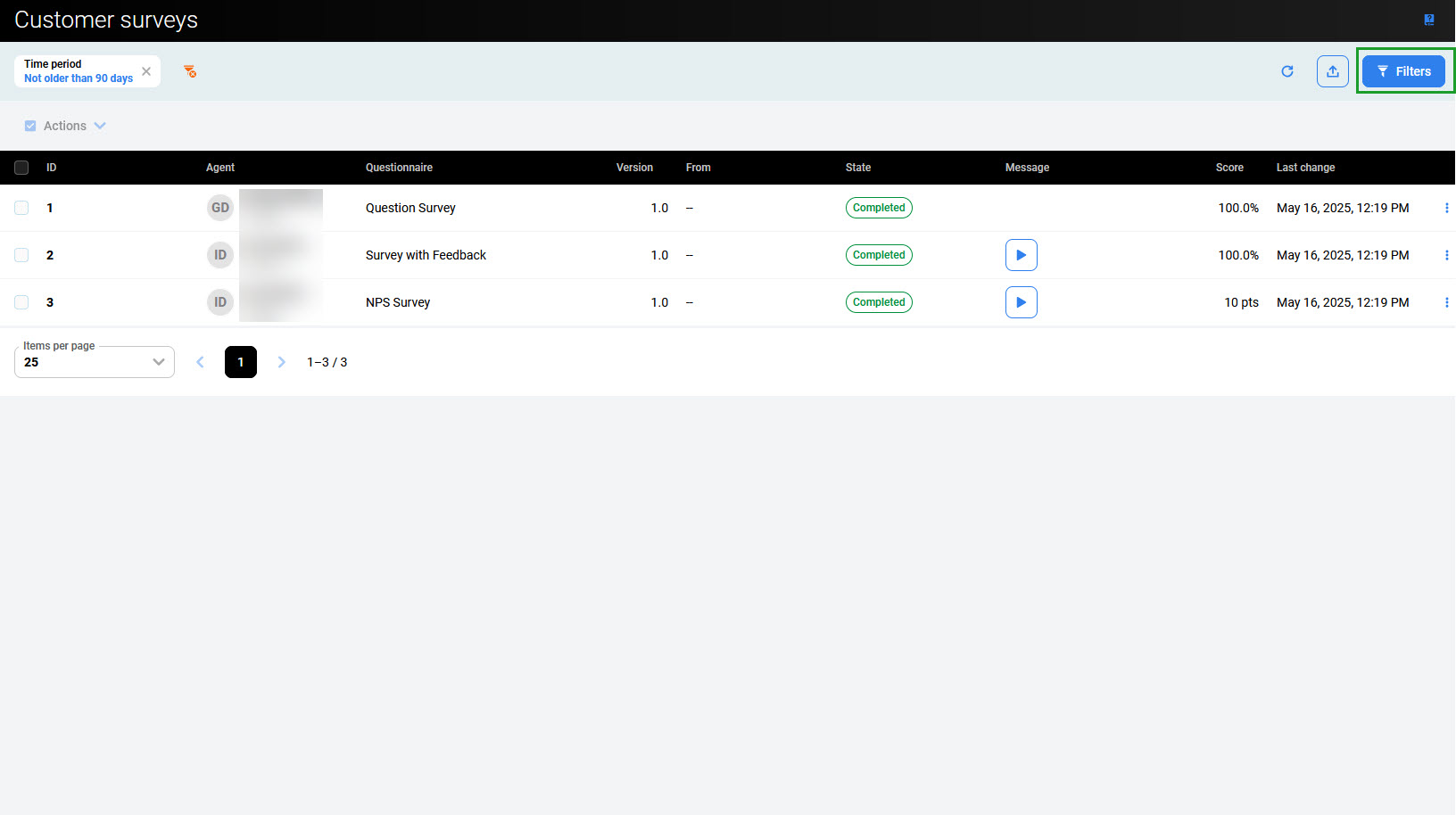
Surveys can be filtered according to specified criteria. For example, a survey related to a particular agent can be found. To filter the surveys, click the Filters button in the top right corner of the Customer surveys screen.
The Filters pane opens.
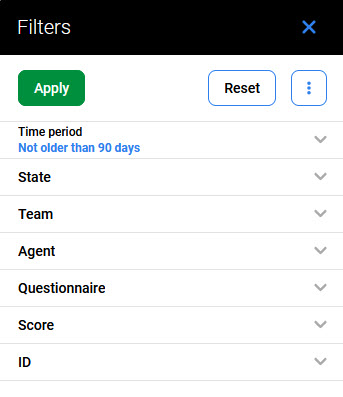
To search for a particular survey, use one of the following fields:
-
Time period – Select a preset date period (for example, Today, Yesterday, …) or provide a custom date range. The predefined selection is Not older than 90 days.
-
State – Select a survey state: Awaiting review, In progress, Completed.
-
Team – Select a team to which surveys were related.
-
Agent – Select an agent to whom surveys were related.
-
Questionnaire – Select a questionnaire that has been used in a survey (selectable from the list of available questionnaires).
-
Score – Provide a specific range of scores (in points or percentages).
-
ID – Select the specific IDs of a training (provide From and To ID numbers).
Alternatively, click the More options icon (three dots) to display the possibilities:
-
Reset filters to default – set all search fields to their default values,
-
Reset all filters – clears all the search fields.