
Training is designed to help staff learn new information and to test their knowledge of it. Each training comes with full instructions and can contain links to training material or video tutorials. If a conversation is attached, staff can view the conversation or listen to the call. This provides context which helps them better retain the information.
To see a complete list of assigned trainings, click Trainings.
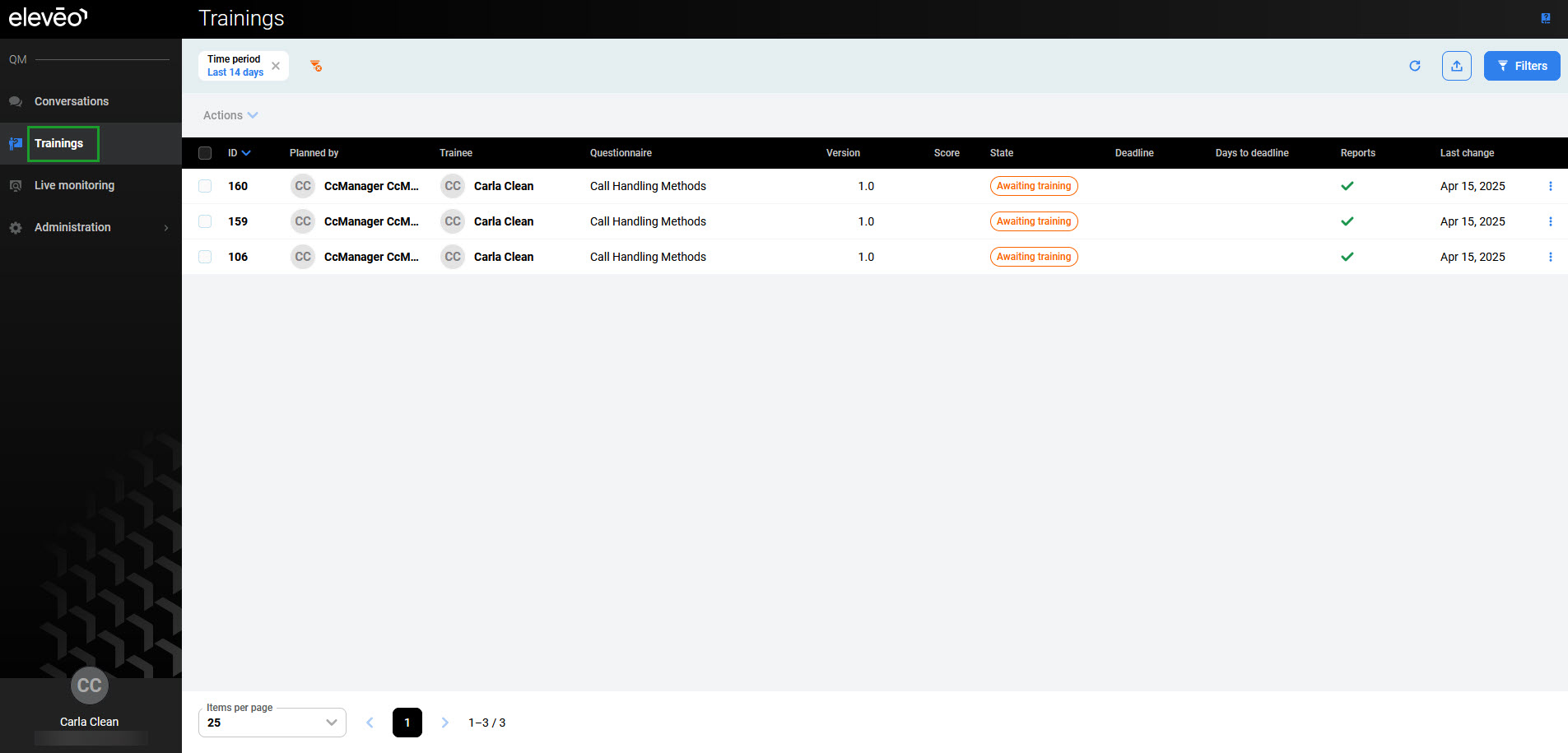
To begin the training:
-
Click a training in the Awaiting training state. The training form opens. Instructions can be found at the top of the form.
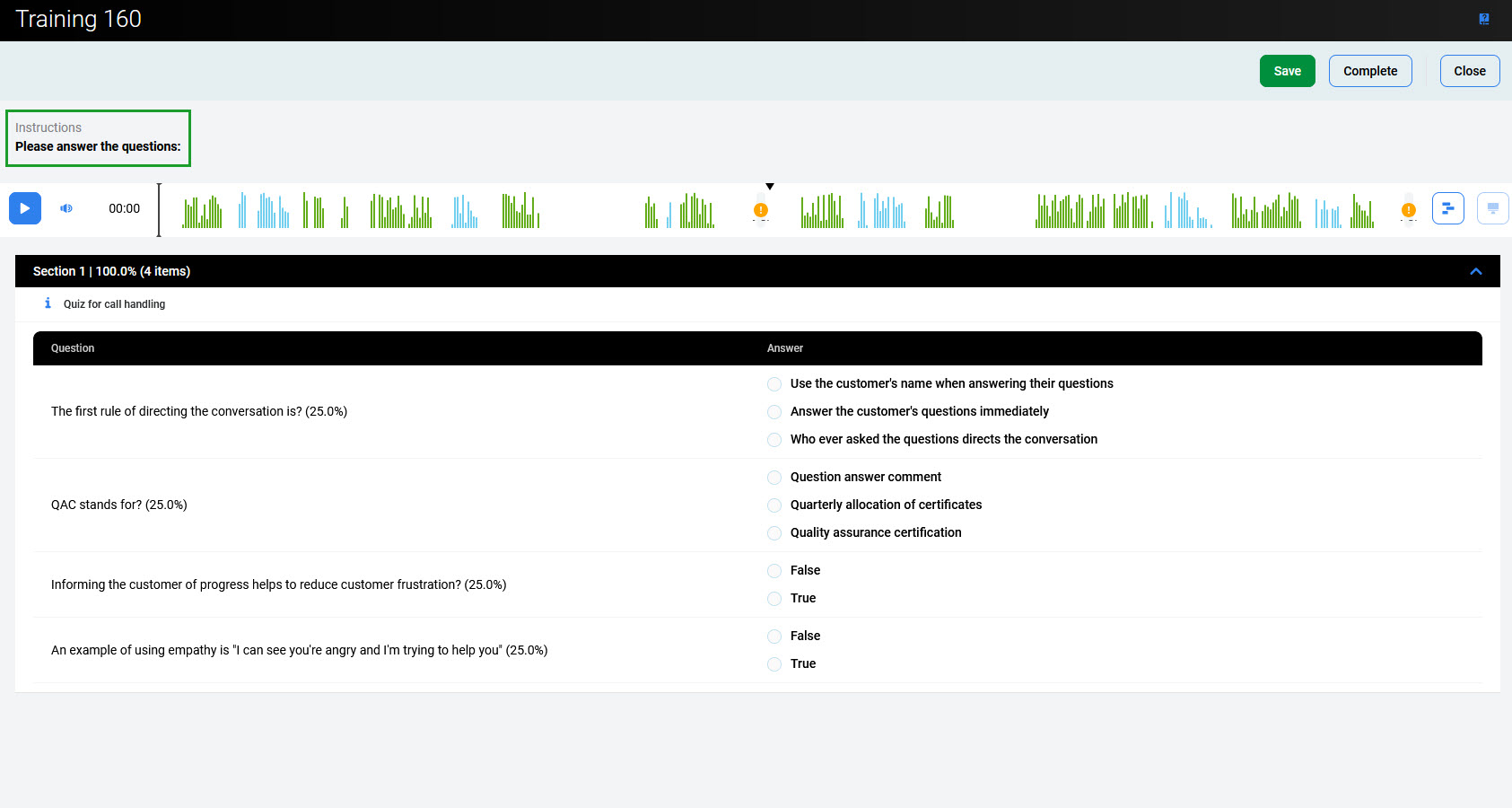
-
If a link to external material is provided, study or watch the training material in a separate browser window.
If an audio file is attached, listen to it using the Player.
To play a conversation, the trainee must be assigned to the Saved filter that includes it. For details, see the Prerequisites section of the Planning Training page.
-
Select the correct answer (or use the drop-down menu) for all the questions.
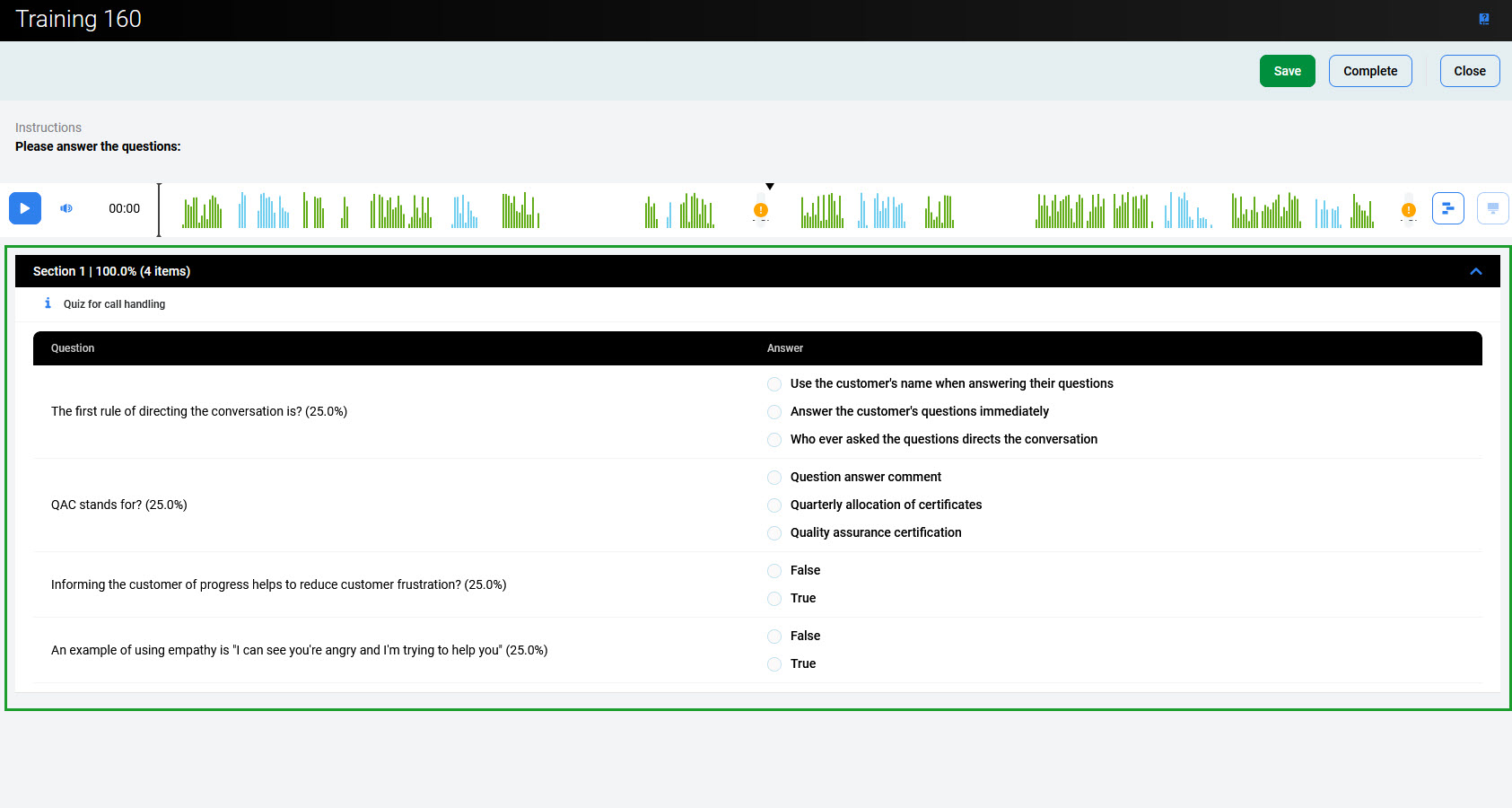
-
Once all questions are answered, click Complete. To complete the training later, click Save.
-
To return to the Trainings screen, click Close.
Completing Training Later
If the training cannot be completed, for example, due to time constraints, click Save. Quality Management saves all previously selected answers, but does not mark the training as completed.
To complete the training later, return to the Training list by selecting Trainings and follow the steps:
-
Click the training row (which now has the In Progress state). The training form opens, showing questions already answered as well as unanswered questions.
-
If necessary, review the instructions and review or listen to the conversation, if any, and answer the remaining questions by selecting the most appropriate answers.
-
Once all questions are answered, click Complete. To return to the Trainings screen, click Close.
The Interaction Player and Its Functionality
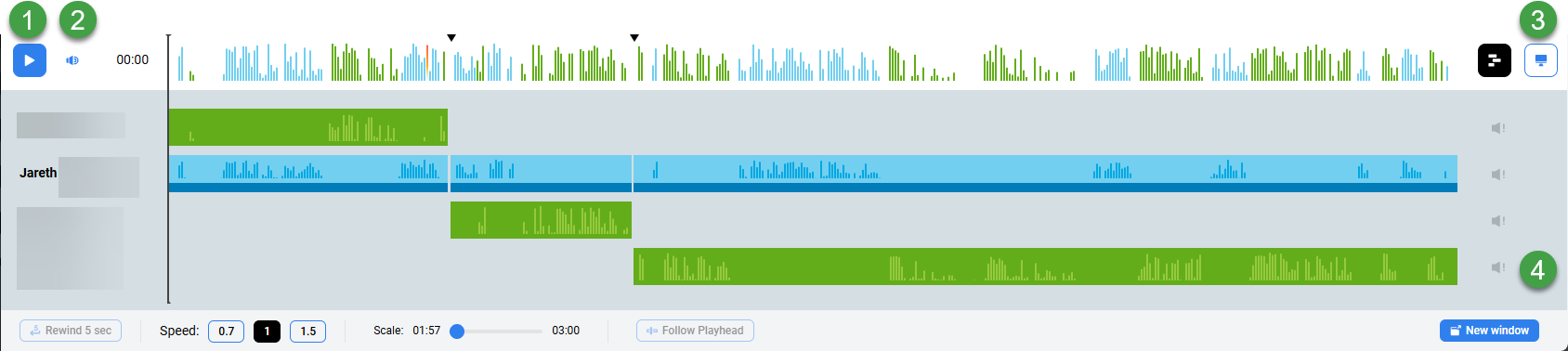
The various parties in the conversation are displayed below the primary waveform separately. Click the waveform button to view or hide the individual segments. Each individual waveform is color-coded: green for customers, blue for agents (if the ID or DN for the specific agent is available to be paired with the conversation or segment).
-
Click the Play or Pause button to control the conversation playback(long recordings may take some time to load before they are playable).
-
Hover over the volume icon and click to adjust the audio volume or click the speaker icon to mute the sound.
-
If media files are present, the following options may be visible:
-
Screen Recording – If the conversation you are playing contains a screen recording (record is marked with the Screen button). Click the button to open the playback window. If no screen recording is available, the button is greyed out.
During playback, the button is highlighted. Screen recordings are not loaded until you expand the playback window. Audio is playable at any time.
-
Video Recording – If the conversation you are playing contains a video recording (record ismarked with the Video recording button). Click the button to open the playback window. If no video recording is available, the button is grayed out.
-
-
The scroll bar (on the right-hand side) is only visible in the case that there are more than four media streams.
Video – When video is attached to recordings, the conversation plays from the beginning to the end without the ability to skip throughout the recording (seeking is not supported for video and conference video recordings). This is due to the way encryption and decryption work on the server side.
Webex Recordings – When multiple agents are part of a conversation their audio track may appear as part of a single waveform. This is a technological limitation of the recording solution.