Overview
Quality Management enables the customization of the information displayed on the Conversation Explorer. Additional columns and search criteria (based on the available metadata) can be added by users with the permission EDIT_ADMIN_SETTING. (The required permission is assigned to the DEFAULT_CC_MANAGER as part of the Default Composite Application Roles.)
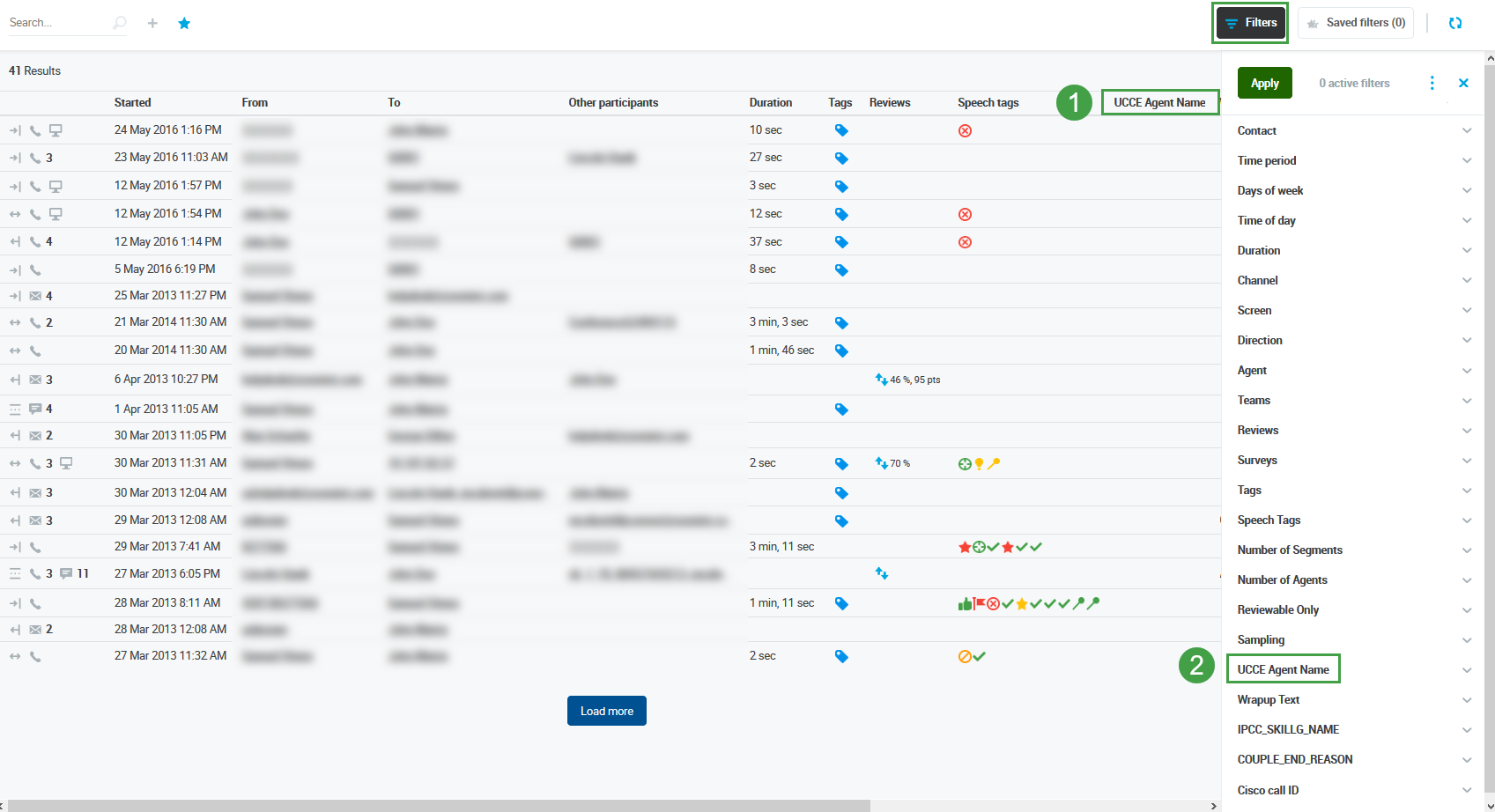
Once configured the following will be available to all users from within the Conversation Explorer:
-
Customized Columns
-
Custom Search Criteria
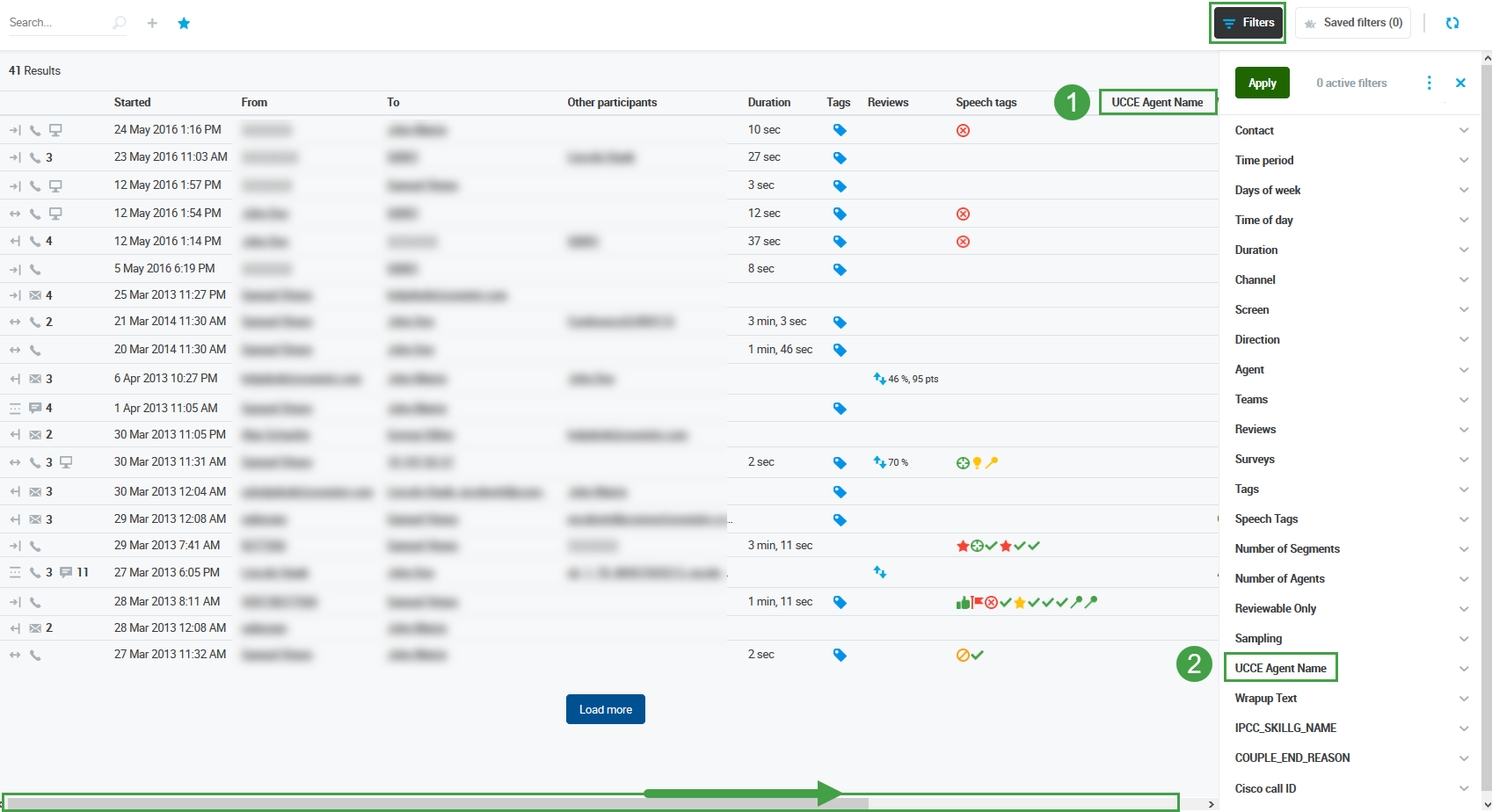
Add a New Column or Search Criteria from the List of Available Metadata Keys
To add columns to the Conversation Explorer go to Administration > Conversation Settings.

A list of metadata keys available for use is visible from within the Conversations Settings tab.
Add Criteria
From the list of available options
-
Select the boxes from the Available metadata keys to create search fields or table columns, which will be visible on the Conversation Explorer. De-select an item to remove it.
-
The name displayed and the tooltip can be customized. It is recommended that the Column Name and Tooltip that will be displayed to users be modified for clarity.
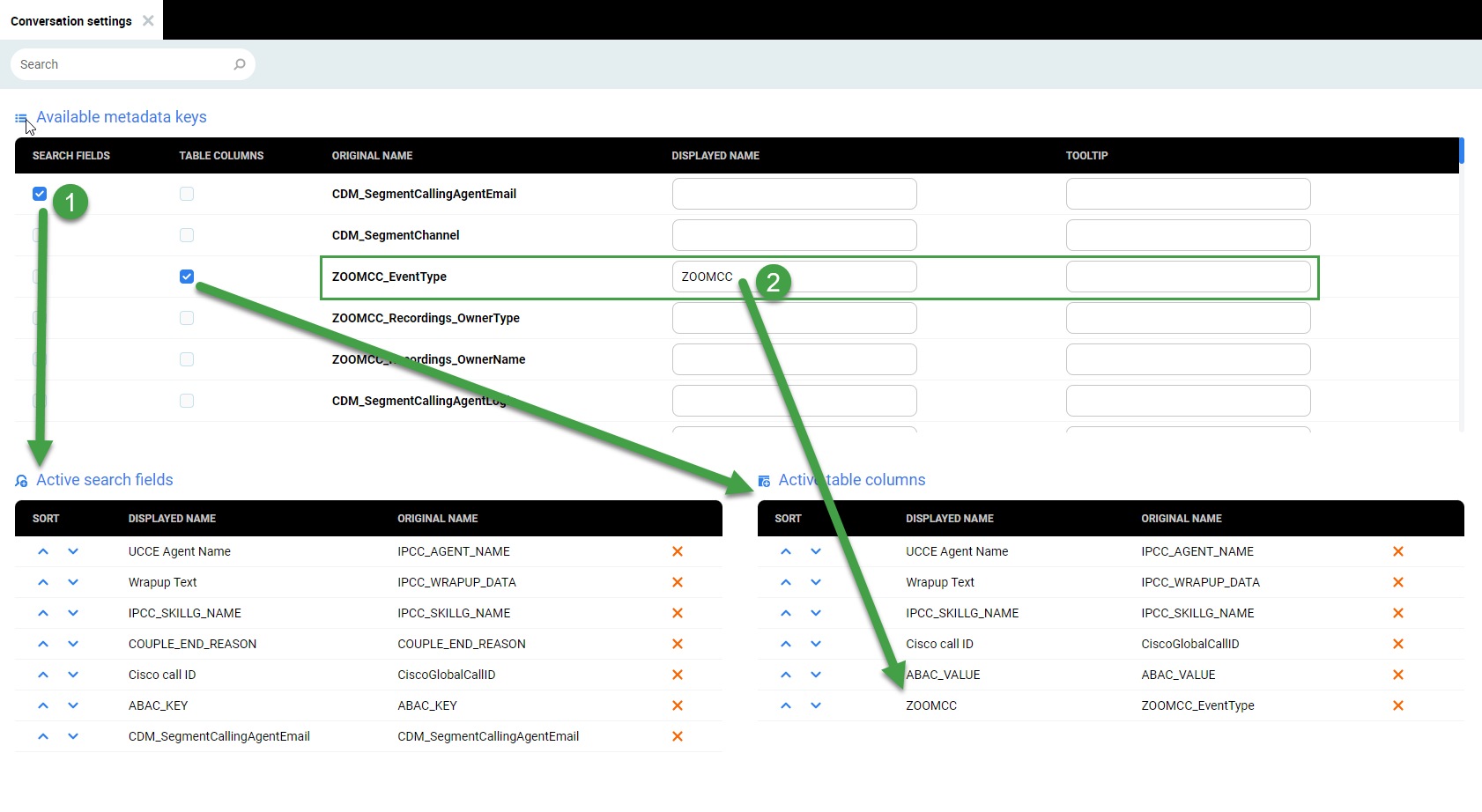
Changes are saved by clicking on the checkmark.
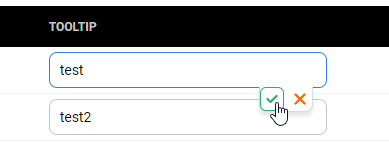
The changes will be visible on the Conversation Explorer once it is reloaded.
It is not necessary to log out of the application in order to apply the changes. Close and re-open the Conversation Explorer in order to view changes.
Remove a Column
To remove a column or search field that has been added:
-
De-select the item

-
Click on the x to delete or remove the column from active view.
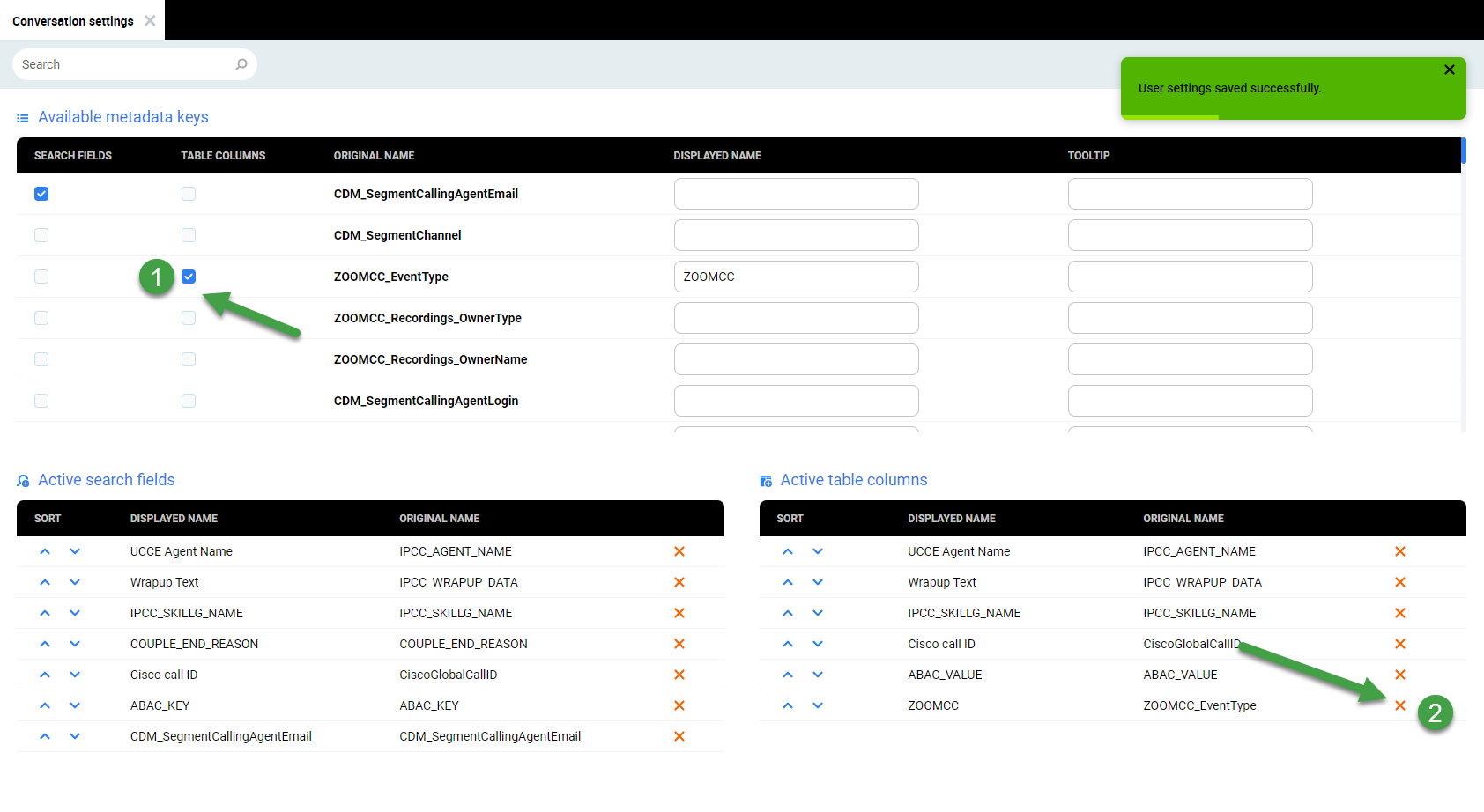
A confirmation message will appear.
Reorder Visible Columns
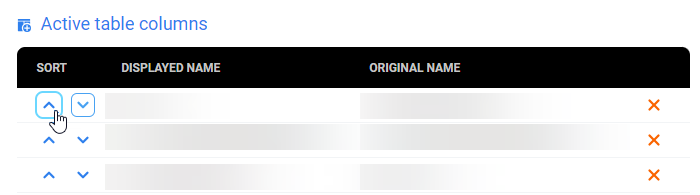
Click the arrows to reorder the customized lists.
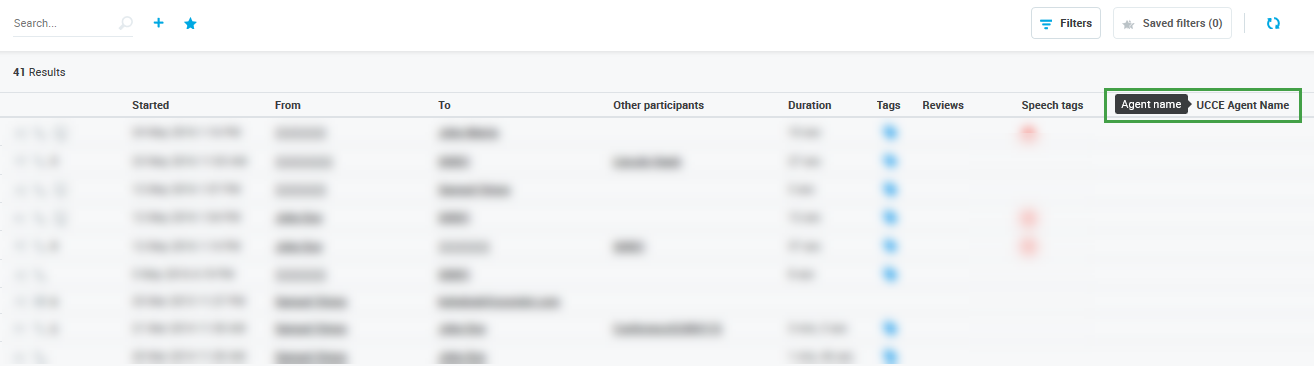
The new items will be displayed on the Conversation Explorer after the default options. For search fields, they are: Telephone number, Time period, Days of week, Time of day, Duration, Channel, Screen, Direction, Agent, Tags. For columns: Started time, From and To numbers, Other participants, Duration, Tags, Reviews, Speech Tags.
Modify the Column Name and Tooltip Displayed to Users
It is possible to change the name of the new columns which will be displayed to users on the Conversation Explorer.
Click on the text field beside the select metadata.
Edit the name to display or provide an informative Tooltip that will be displayed to users.

Click on the check mark to save the changes. Or the x to delete changes.
The changes will be visible immediately after re-opening the Conversation Explorer. (Close and reopen the Conversations Tab to view changes)
New columns are visible. (Hover over the column name to view the Tooltip)
New search criteria are visible.