
Overview
The production forecast is the final forecast that is used in the creation of a schedule. Any draft forecast created within the studio environment can be selected and used as the production forecast.
The WFM_VIEW_FORECAST role is required to view production forecasts. This role is included by default in the WFM_ANALYST and WFM_SCHEDULER composite roles. The WFM_EDIT_FORECAST role is required to put a forecast into or remove it from production. This role is included by default in the WFM_SCHEDULER composite role. Read more about Workforce Management Roles.
Checking Production Forecasts
To display existing production forecasts, click the Forecasting module within the navigation tree. The Forecasting Studio screen will display.
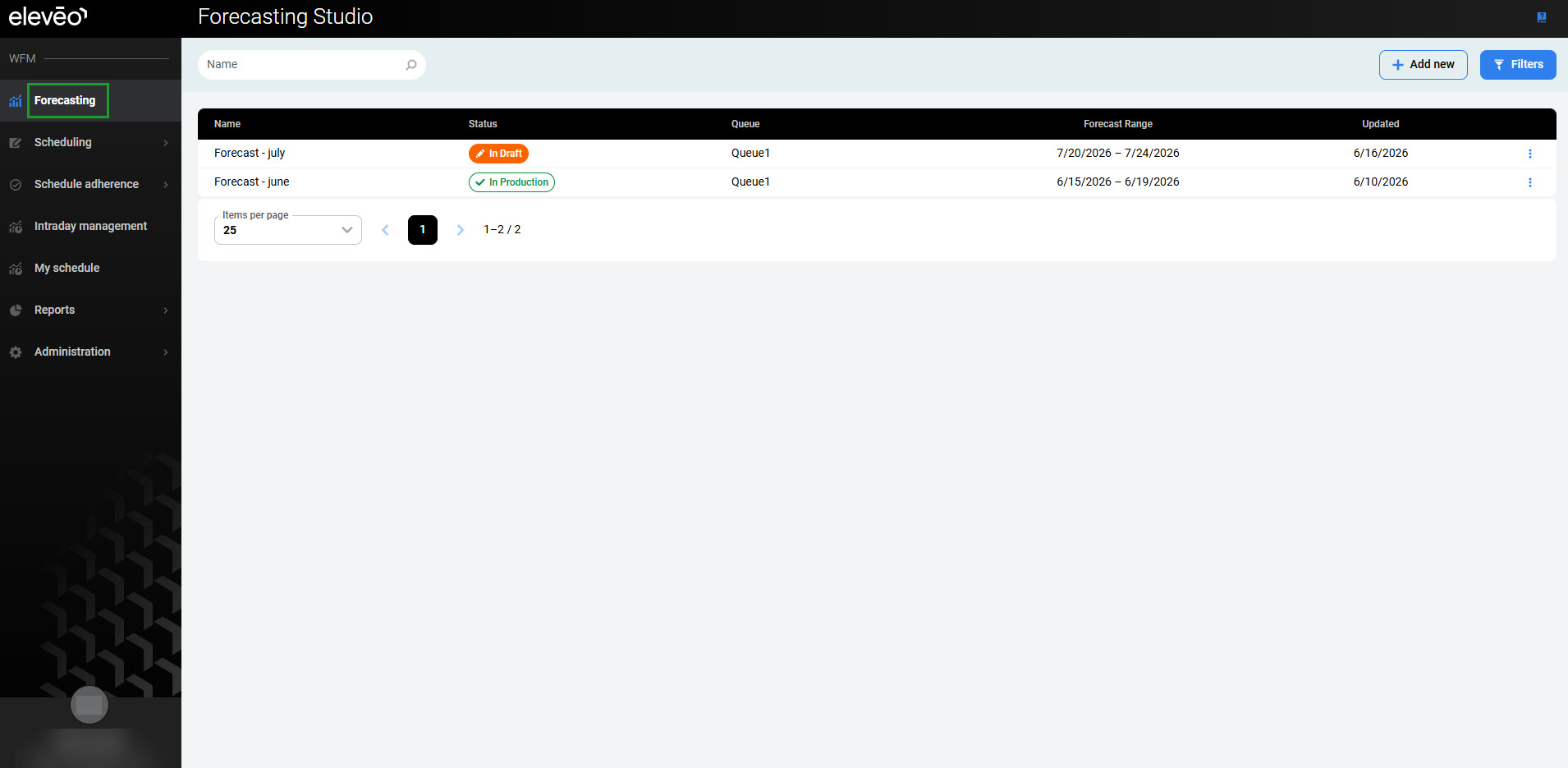
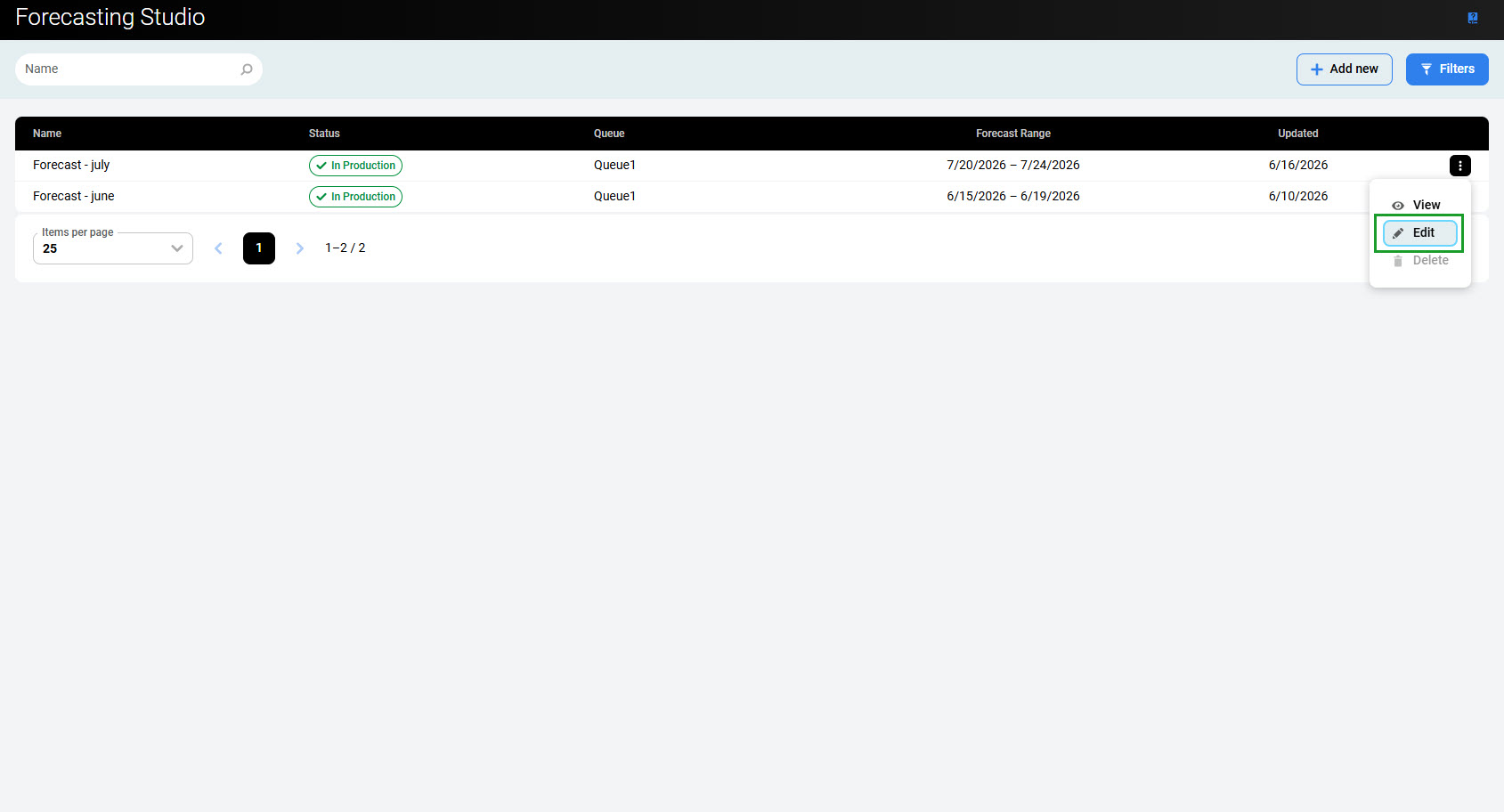
The forecasts currently in production are marked with the green In production label in the Status column:
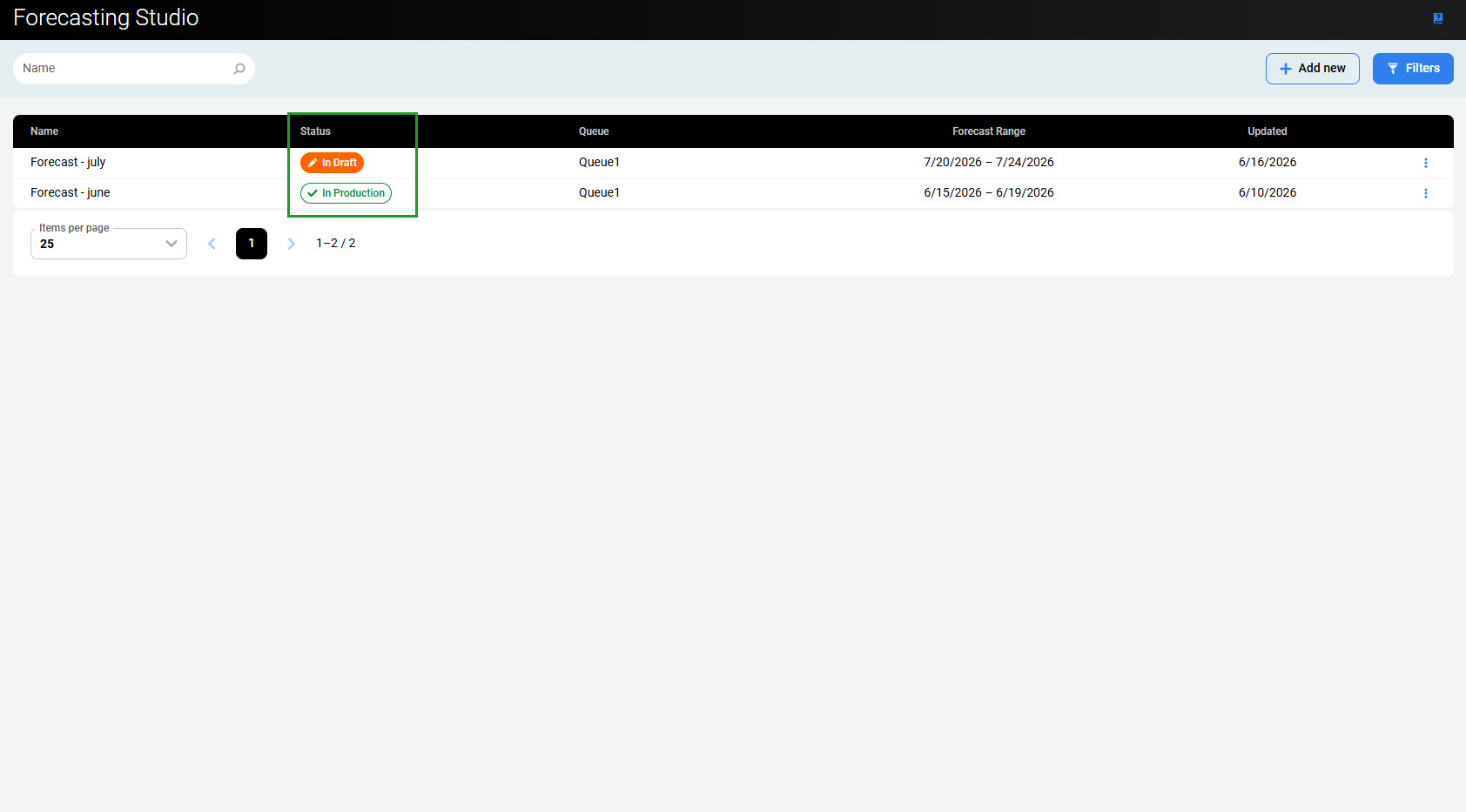
Only one forecast can be in production for each queue for any given day:
-
When a new production forecast is selected for the same time range and queue, the previous production forecast is automatically converted to a draft.
-
If the new production forecast has an overlapping time range with an existing production forecast, both remain in production, but the overlapping days are overwritten by the newer forecast.
The menu on the right provides the following actions for production forecasts:
-
View – Allows the forecast to be reviewed without modification.
-
Edit – Allows the forecast to be modified, but it must first be changed from Production to Draft.
-
Delete – Not active for production forecasts.
A production forecast cannot be edited or deleted. Remove it from production first, then edit or delete it as a draft.
Selecting a New Production Forecast
Click the Edit button for the forecast that you wish to put into production.
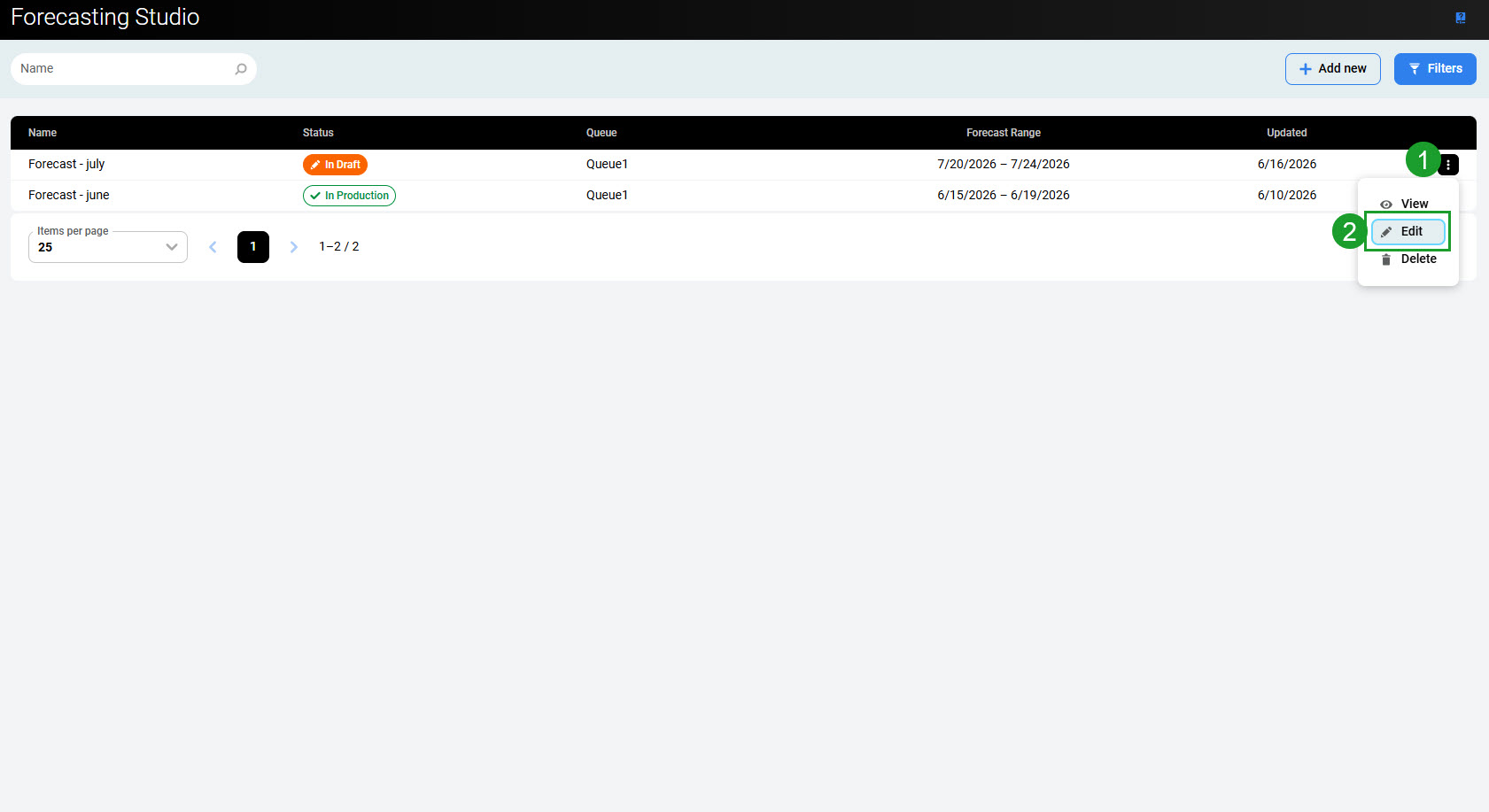
Click the Publish button.
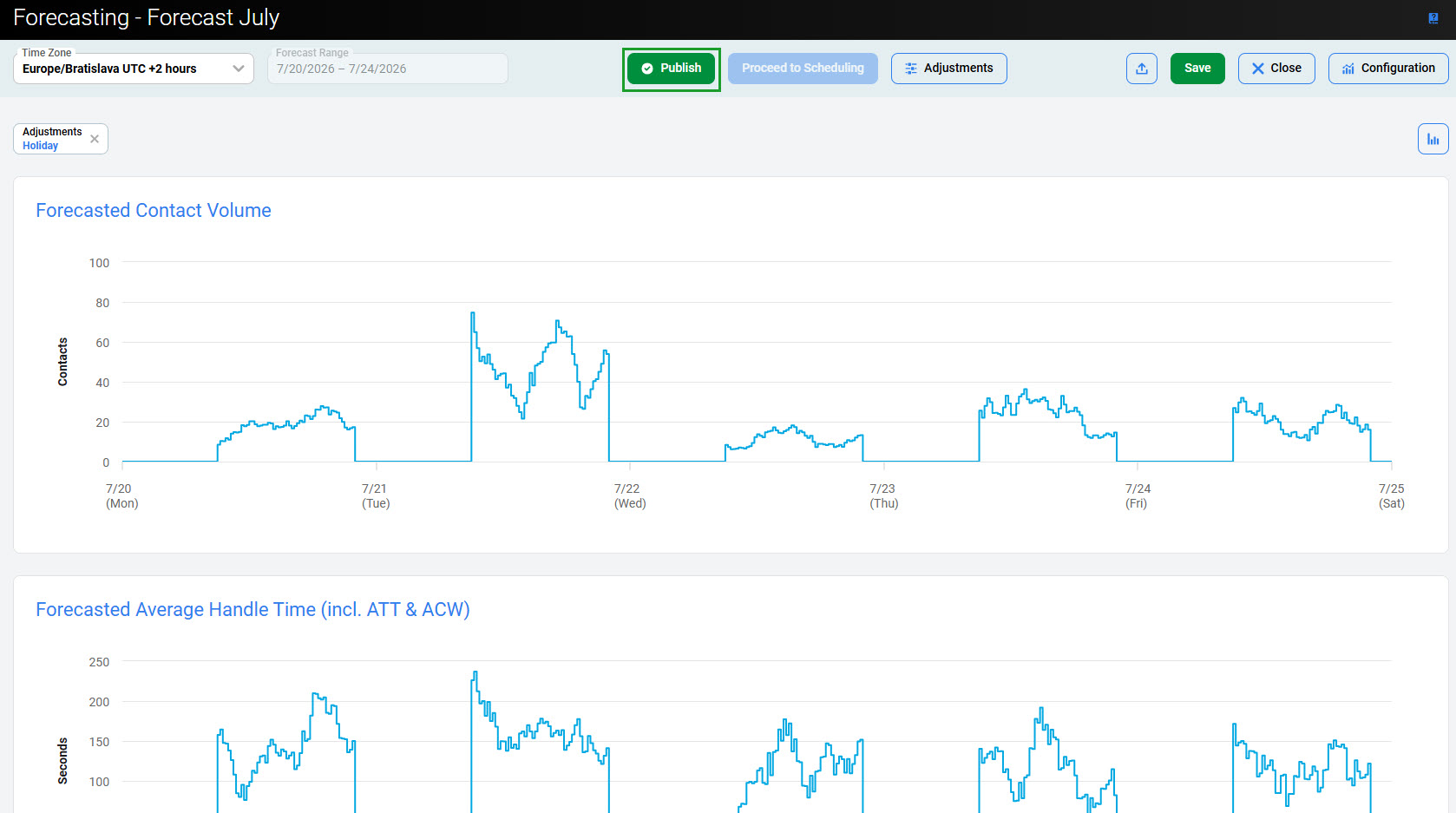
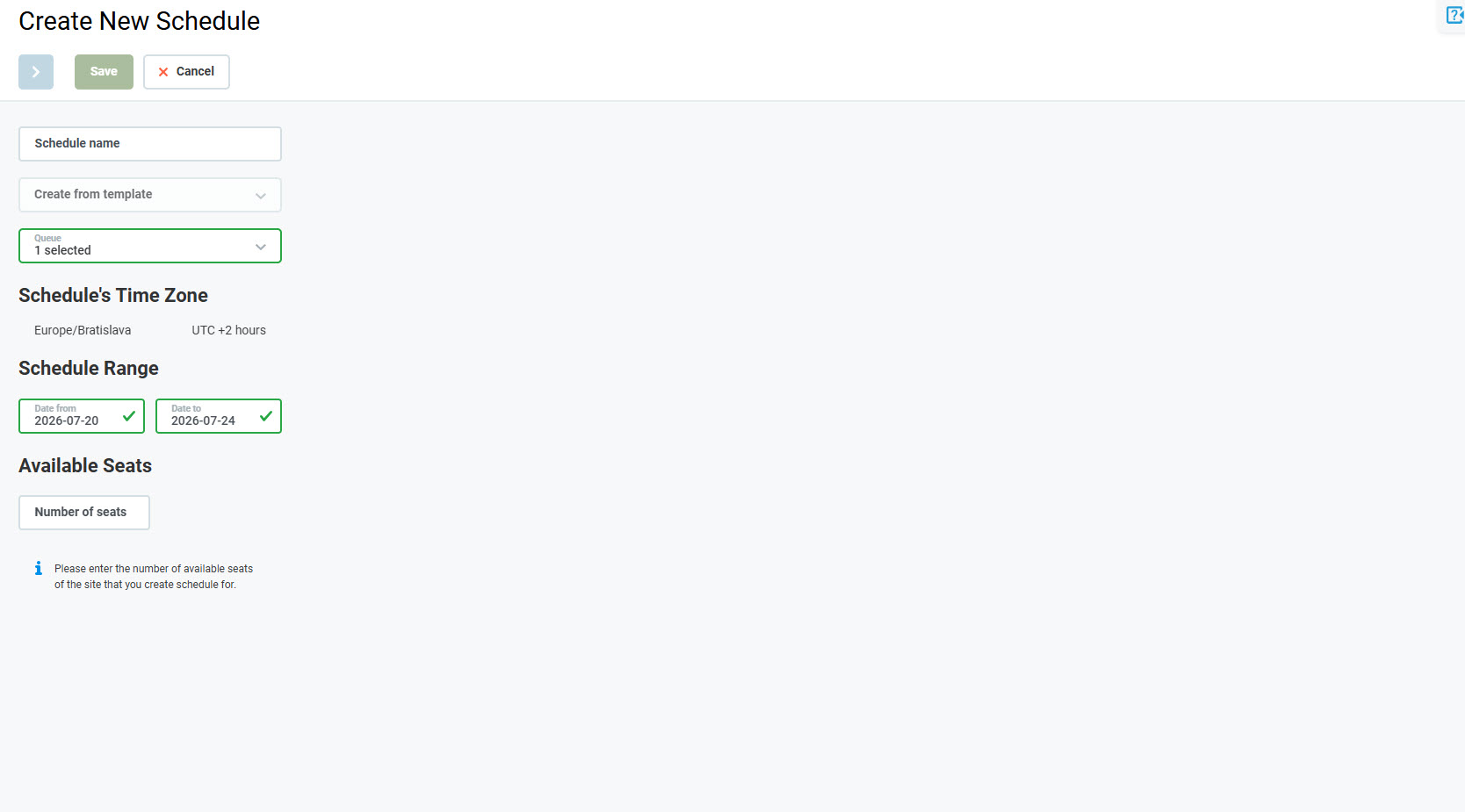
Use the Proceed to Scheduling button to quickly switch to the Create New Schedule page.
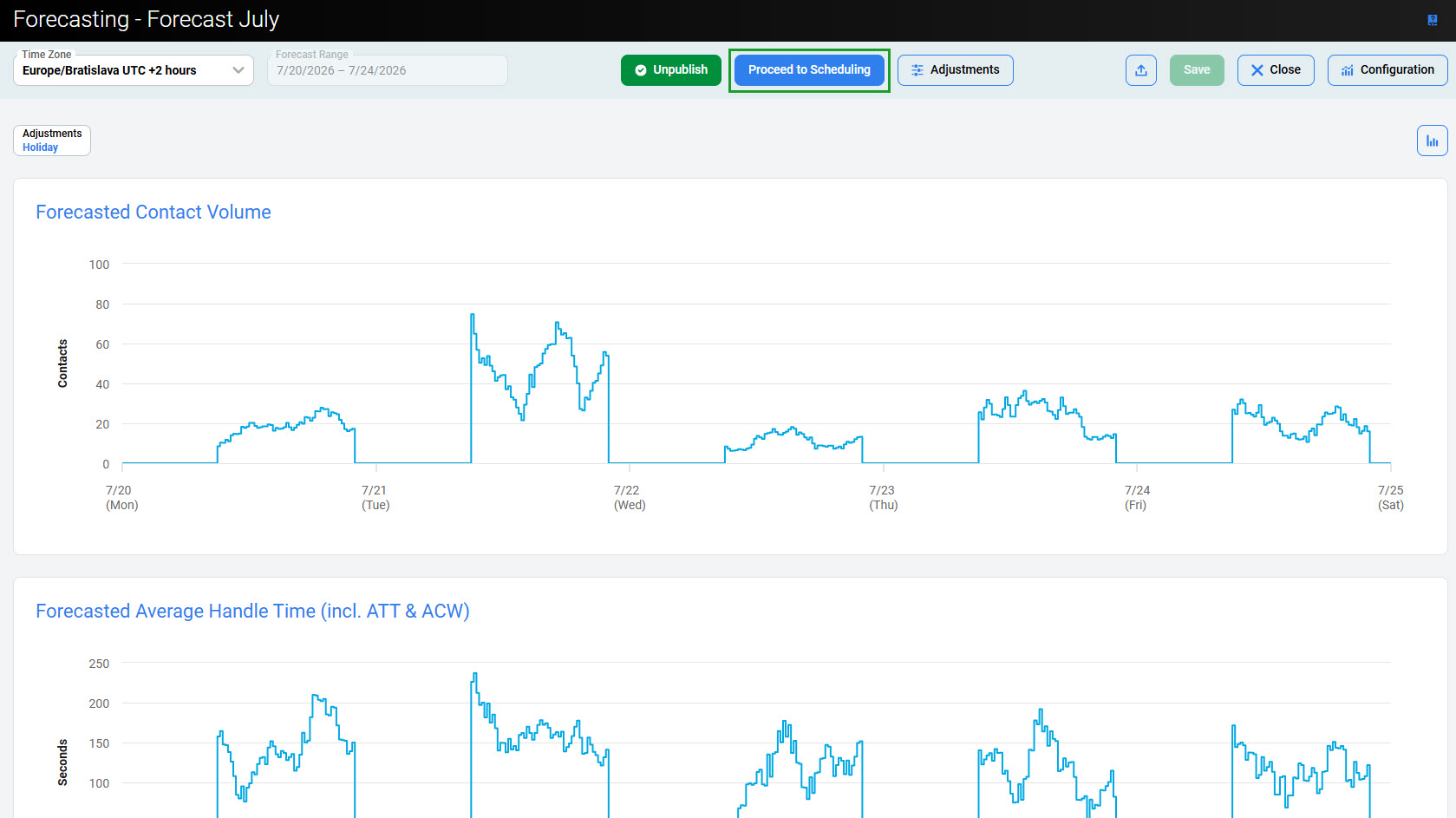
Data selected in the Forecasting Studio (Queue, Date from, Date to) is used as input.
Clicking Publish saves all unsaved changes in addition to publishing the forecast. If clicked during forecast creation, the forecast is created and published in a single action.
Editing the Production Forecast
A production forecast cannot be edited directly. To modify it:
-
Remove the forecast from production.
-
Edit the draft forecast.
-
Put the forecast back to production.
Removing a Forecast From Production
To remove a forecast from production, click the Edit button for the forecast that is in production.
Click the Unpublish button to remove the forecast from production.
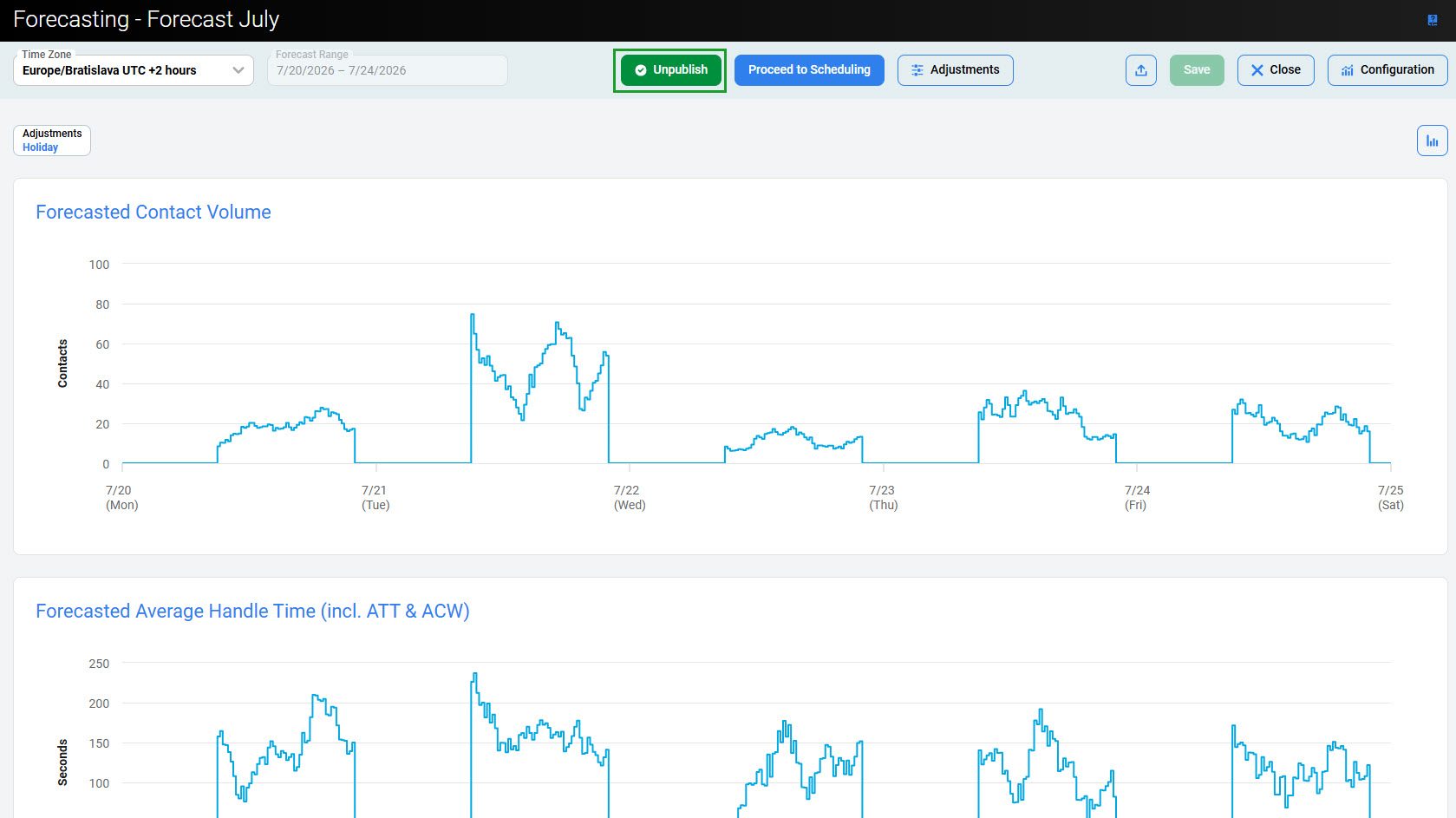
The Save button is active, and it is possible to add forecast adjustments again.