
Overview
Before a schedule can be created for a group of people – for example employees, agents, back office assistants, or any individual who is going to be scheduled by Eleveo WFM – they need to be visible on the People screen. However, people are not added or removed from within the Eleveo WFM application. This can only be achieved from within the Eleveo User Management application. For more information, see Managing Users. People assigned the WFM_AGENT_PERSONA effective role (the WFM_AGENT has this role assigned by default) are automatically synchronized from Eleveo User Management into Eleveo WFM. People with the WFM_ANALYST and WFM_SCHEDULER roles are application users only and are not scheduled by Eleveo WFM. These users aren't visible on the People screen.
As a precondition of the schedule creation, it is necessary to assign people with a WFM_AGENT role to a queue, based on the skills they are handling. For more information, see Queues. The queue assignment determines which schedule they will be included in. The queue assignment can be done directly on the People screen or, alternatively, from within the Queues screen.
To be displayed on the People screen:
-
Users must have the
WFM_AGENT_PERSONAeffective role assigned (theWFM_AGENThas this role assigned by default). -
They must be members of a team that the currently logged-in user is a reviewer of.
Only users with the WFM_ANALYST role assigned can modify users on the People screen. For more information, see Roles.
Roles, group membership, and reviewers' permissions are set in User Management. To change it, go to users' properties on the relevant tabs — Roles, Groups, Can review.
Displaying Existing People
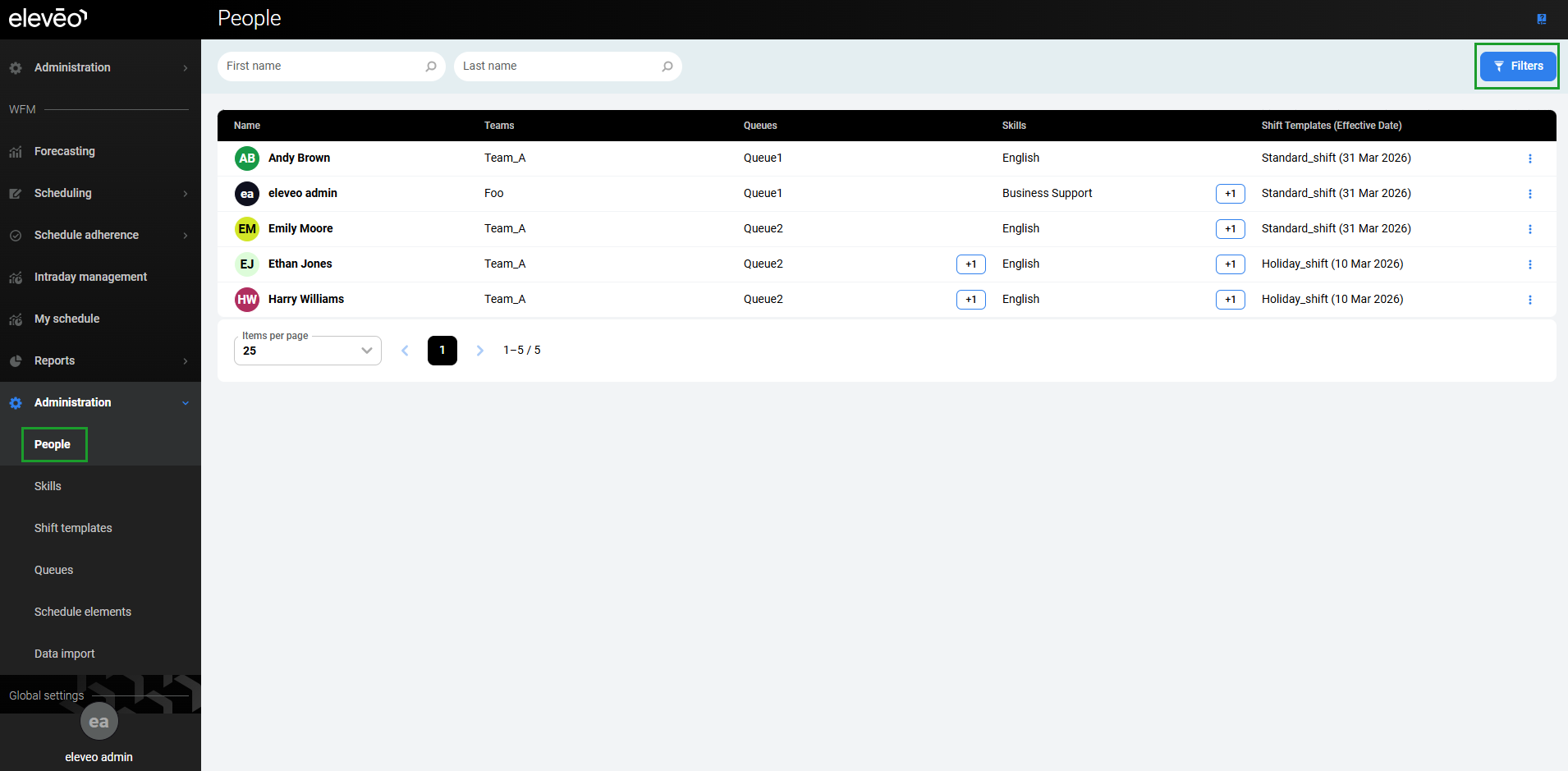
To display people already existing in the system, expand the Administration module from within the navigation tree and click People. The People screen displays.
Only the users who belong to the team(s) that the currently logged-in user has assigned in the User Management > users' properties > Can Review tab are listed on the screen. For details, see the Can Review section of the Editing Users page.
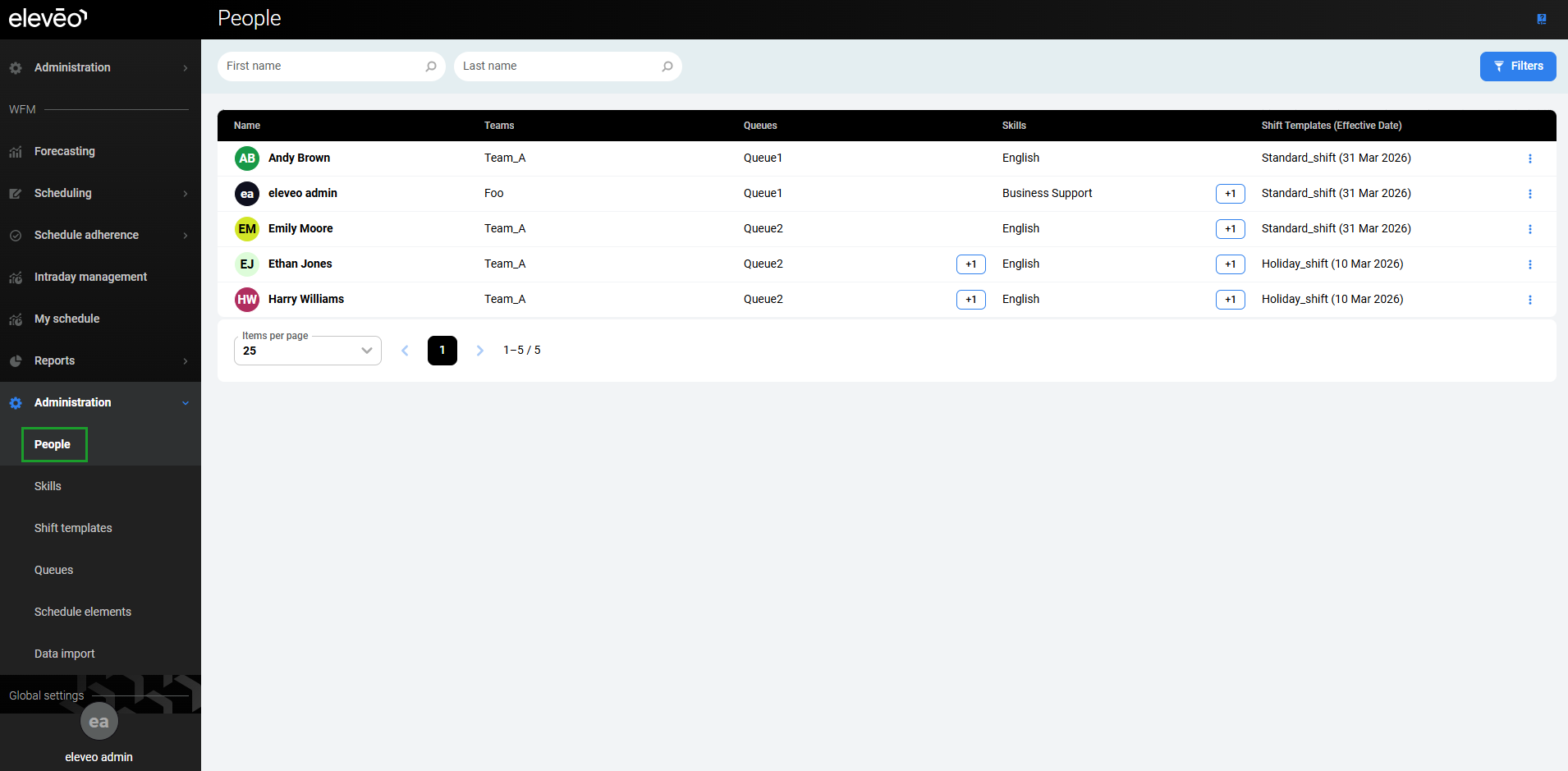
The following columns display basic information about each person:
-
Name – the name of the employee.
-
Teams – the name of the team(s) that the person belongs to.
-
Queues – the name of the queue(s) to which the employee belongs.
-
Skills – the name of the skill(s) that are assigned to the employee.
-
Shift Template – the name of the shift template assigned to the employee.
The Actions column enables actions related to the user, in this case, modifying the person. This option is available only to a user with the WFM_ANALYST role assigned.
Adding and Removing a Person
A new person can be added and an existing person removed only from within Eleveo User Management. For more information, see Managing Users.
Editing a Person
To edit a person, click the Action button in the Actions column for the person. Select Edit.
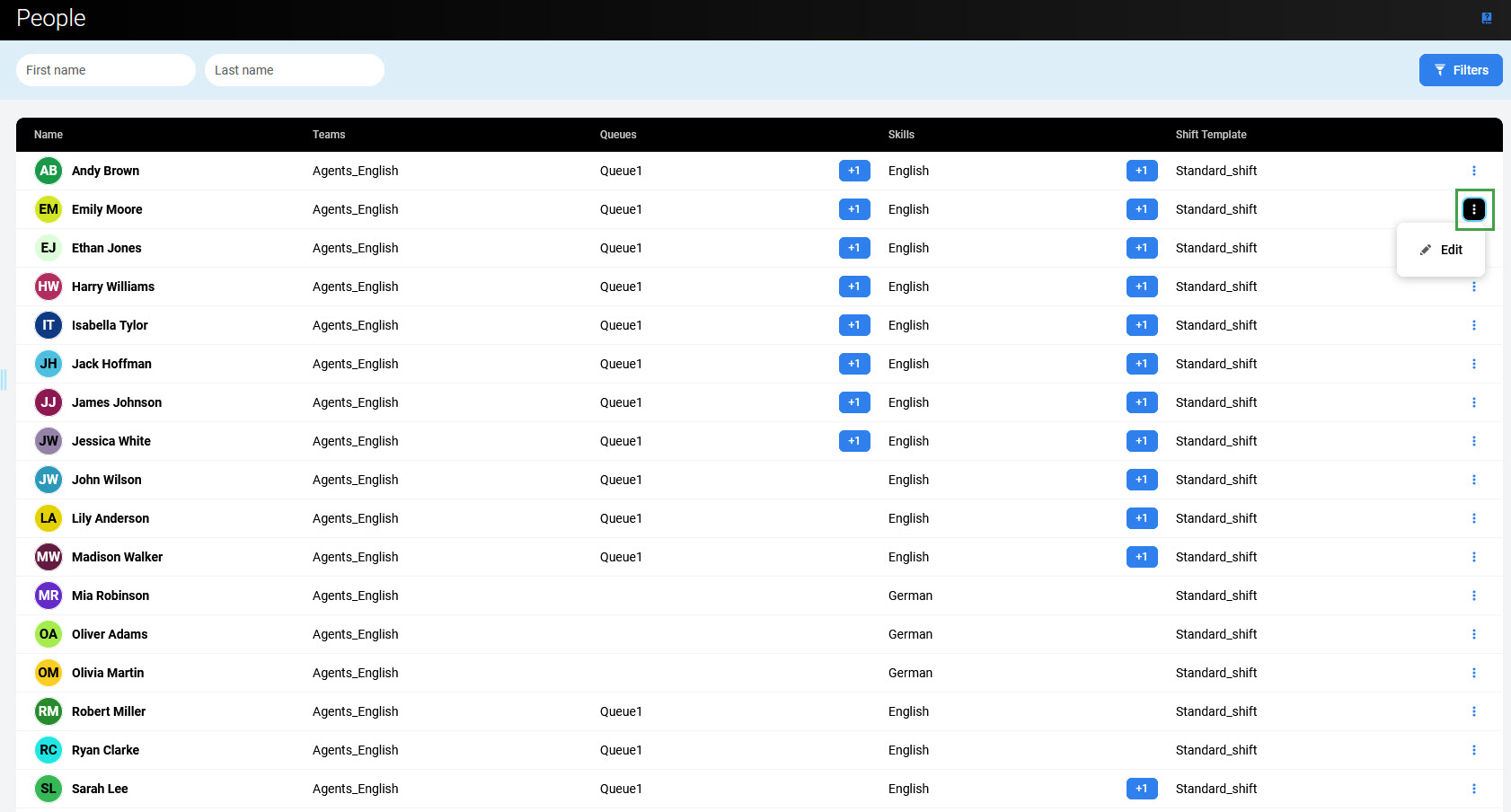
The Edit Person pane displays.
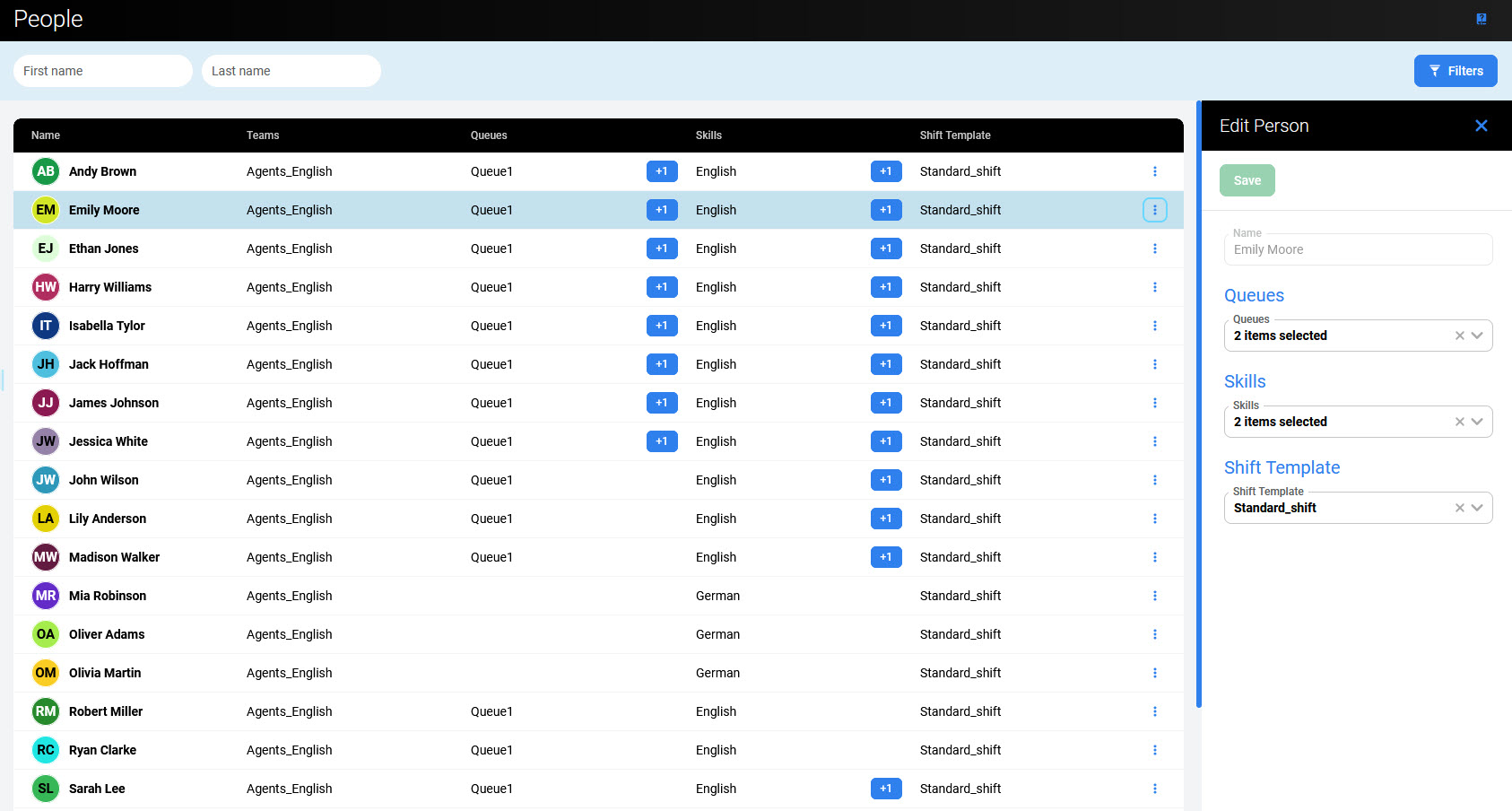
Queues, skill assignments, and a shift template can be modified.
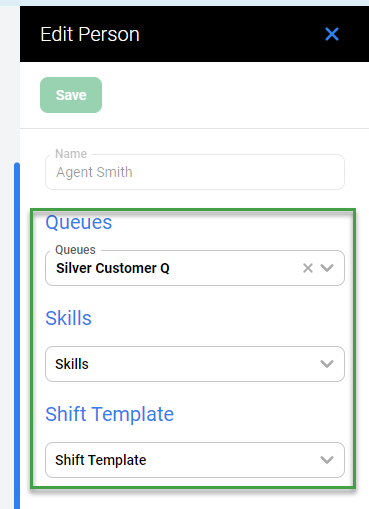
Note that a given queue may be configured in one of two ways: with or without an assigned skill. If a queue has a skill requirement, people must also have this skill assigned to them in order to have this queue available to them. If no skill is assigned to the queue, the queue is available to everyone regardless of their skills. For configuration options, see the Queues screen.
As a result of this, the configuration in the Edit Person pane works in the following way:
-
If no skills are selected from the Skills drop-down menu, only queues that don't require any skill are displayed in the Queues drop-down menu and can be assigned to the currently selected person.
-
After selecting skills from the Skills drop-down menu, only queues that require these skills and queues with no skills at all are displayed in the Queues drop-down menu and can be assigned to the person.
-
If a person is already assigned to a queue that requires a specific skill they have, this skill can't easily be removed from this person. A warning message will inform you that this skill is needed for the queue in which the person is assigned. After confirming the removal of the skill, the person will be automatically removed from the queue.
-
Note that if you remove a queue assignment, but the person is already used in the production schedule for this queue, a warning displays after you click the Save button. You can confirm and remove this assignment anyway, but it will affect the calculation of production schedules in the future time range:
-
If the person is assigned to other queues in the same schedule, this person stays assigned to a schedule contributing to the other queues, but the work contribution is re-calculated.
-
If the person isn't assigned to any queue in the same schedule, this person is displayed similarly as an 'inactive' person and their work contribution isn't included.
-
Click Save to save changes.
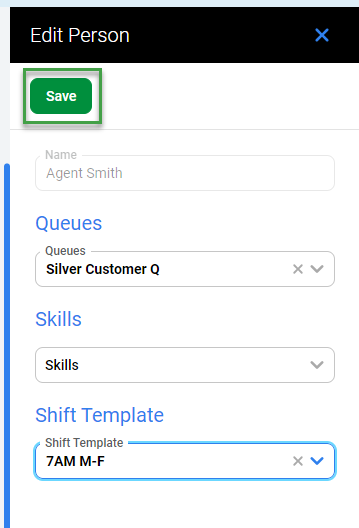
Alternatively, click Close to abandon changes.
Filtering People
You can filter displayed people based on a name or based on configured criteria.
Filtering Based on a Name
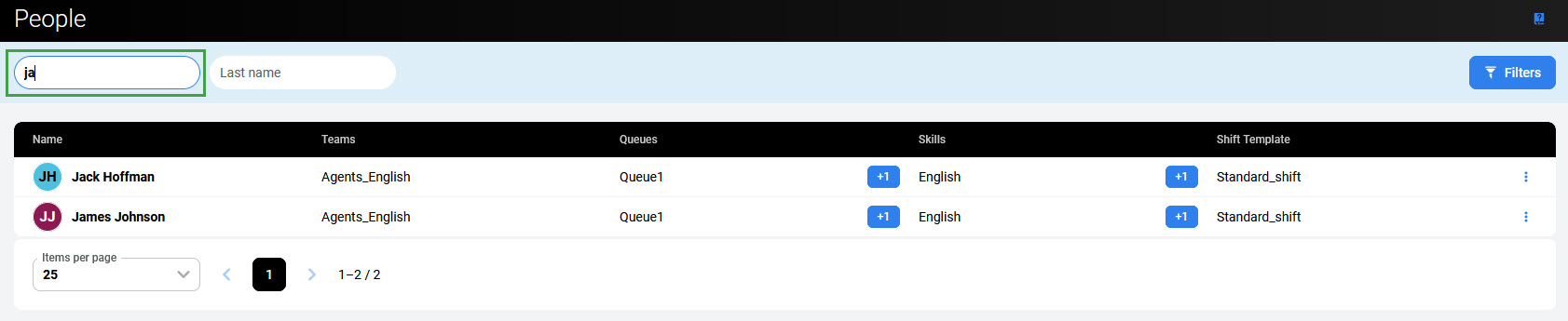
Fill in the First name or Last name to find matching people. The search isn't case-sensitive. Results display dynamically as you type. Click the Reset filter button to remove the name.
Filtering Based on Criteria
To filter people based on configured criteria, click the Filters button in the top right corner of the screen.
The Filters pane displays.
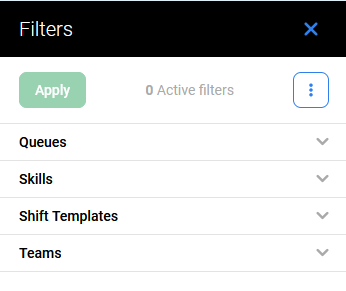
Click the tabs to expand them and display the following filters:
-
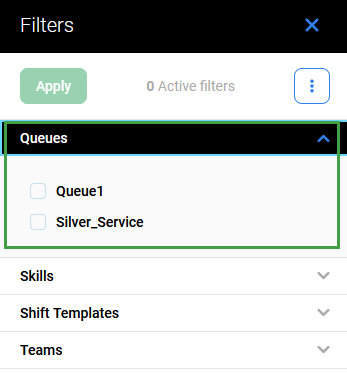
Queues – displays only people assigned to the selected queue(s).
-
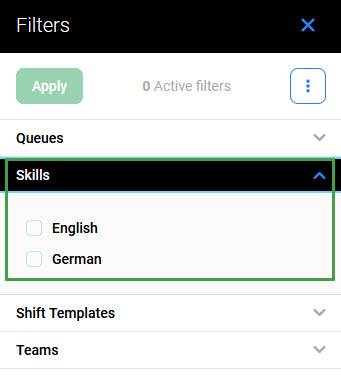
Skills – displays only people who handle the selected skill(s).
-
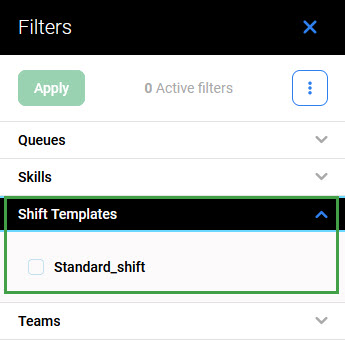
Shift Templates – displays only people who have the selected shift template(s) assigned.
-
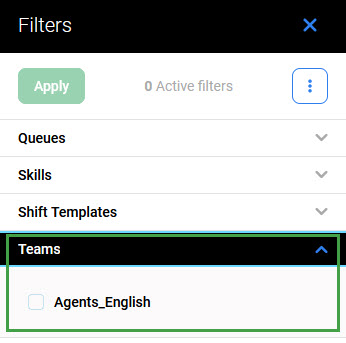
Teams – displays only people who belong to the selected team (only the teams that are managed by the person who is filtering are displayed).
To read more about how to use filters, visit the page Using Filters.