
All the questions are referenced by possible answer variants. Each answer is associated with a digit on the dial pad.
To add answers to questions:
-
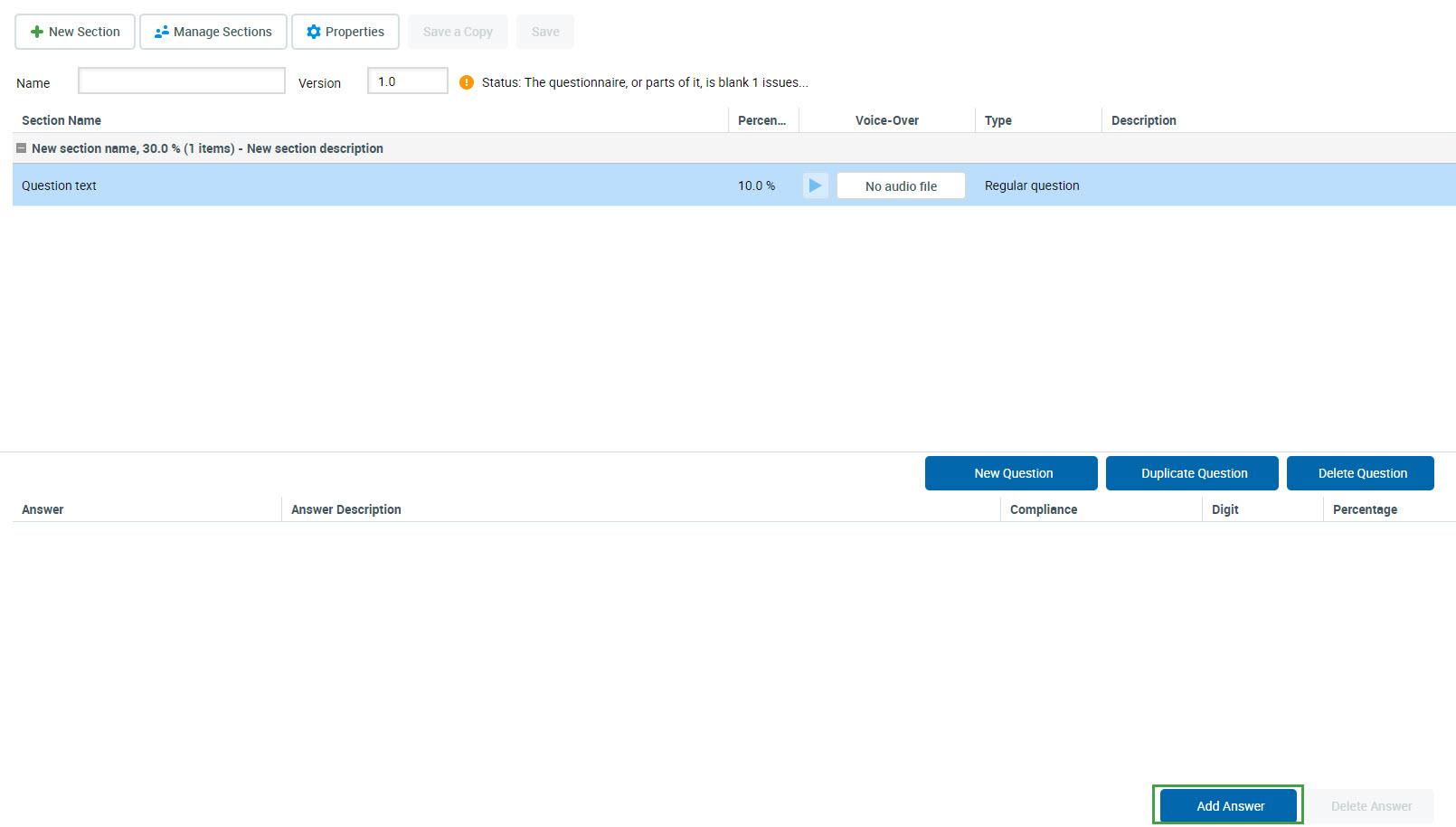
Click to select a question.
-
Click Add Answer at the bottom right of the screen.
-
Type the Answer Name. Type an optional Answer Description.
-
Select a Compliance answer from the following :
-
None: This is the default compliance setting and is used for most answers. Set weight for the answer. Type the answer's Percentage or Points for this question's scoring.
-
Use n/a to set an average score: Not applicable. There are four calculating methods for non-applicable (N/A) answers. Set the method on the Preferences page.
Important: Each survey question should contain a non-applicable (N/A) answer as a final option. A digit for this type of answer should be set to None. This answer is used as a default option in case a customer suddenly hangs up.
-
-
Select a Value to be used on the dial pad for this answer.
-
0-9 for regular question
-
0-10 for NPS type question
-
-
In the Percentage field, provide the weight of the answer in the questionnaire.
-
Click Save to save the answer.
-
Click Save on the questionnaire task bar to save the questionnaire and close it.